Meeting Summary Email: Send an AI Recap Across Languages
Published on Oct 16, 2026
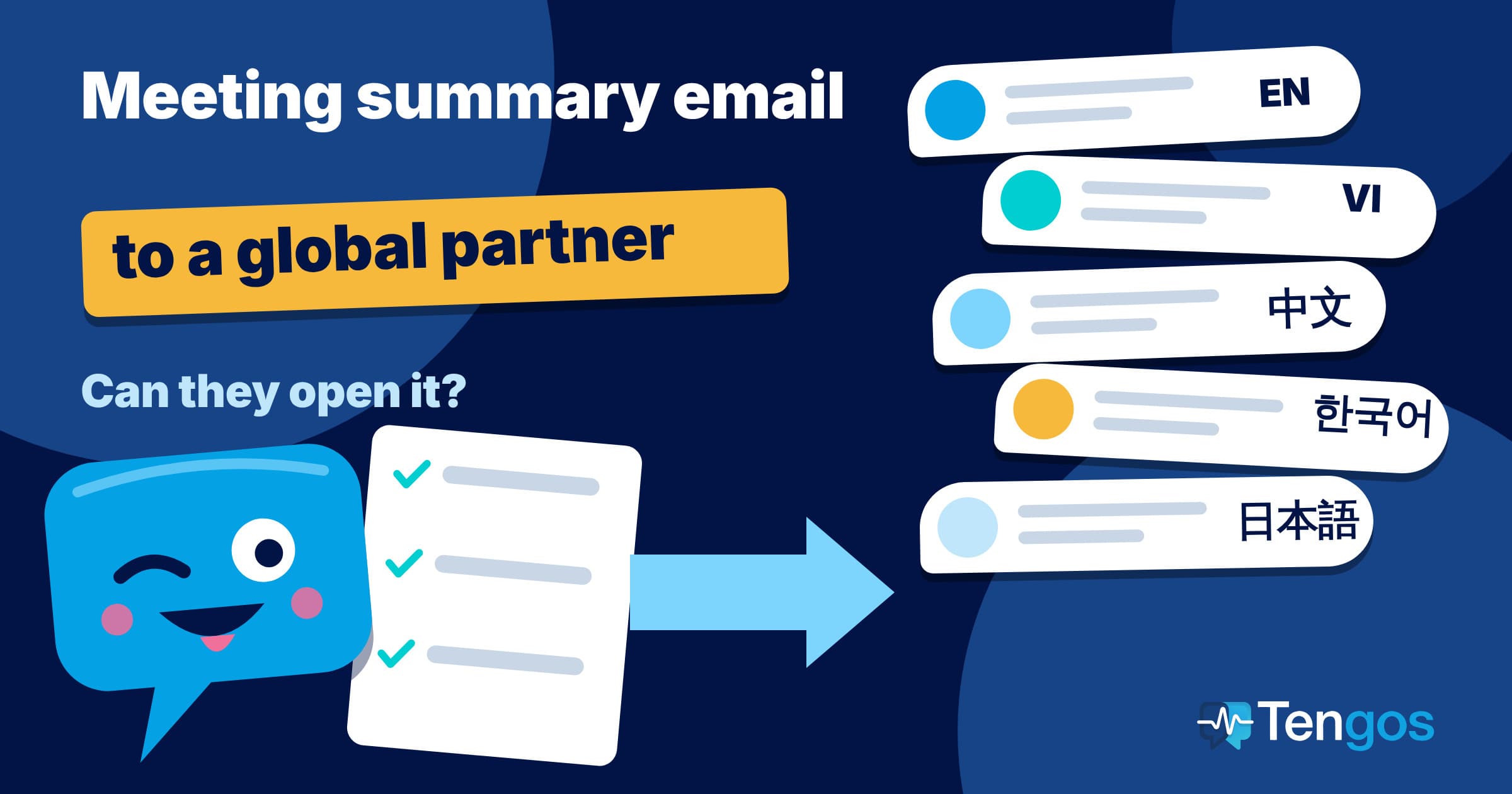
Table of Contents
The simplest way to send a meeting summary email to a partner who speaks another language is to let your AI tool draft the summary from the transcript, read it and fix the important parts, then share it (with a translation if needed) through a channel your partner can actually open: email or a link. This post is for anyone who works with clients, vendors, or colleagues in another country and ends every call with “I’ll send you the notes.” You’ll see how far Google Meet, Microsoft Teams, and Zoom let you share a summary, why people outside your organization often can’t open it, and a five-step routine for getting the recap to your partner reliably.
Key Takeaways
- Summarizing a meeting with AI is only half the job. The other half is getting the summary to the person who needs it, and that is where things get stuck when the reader is outside your organization.
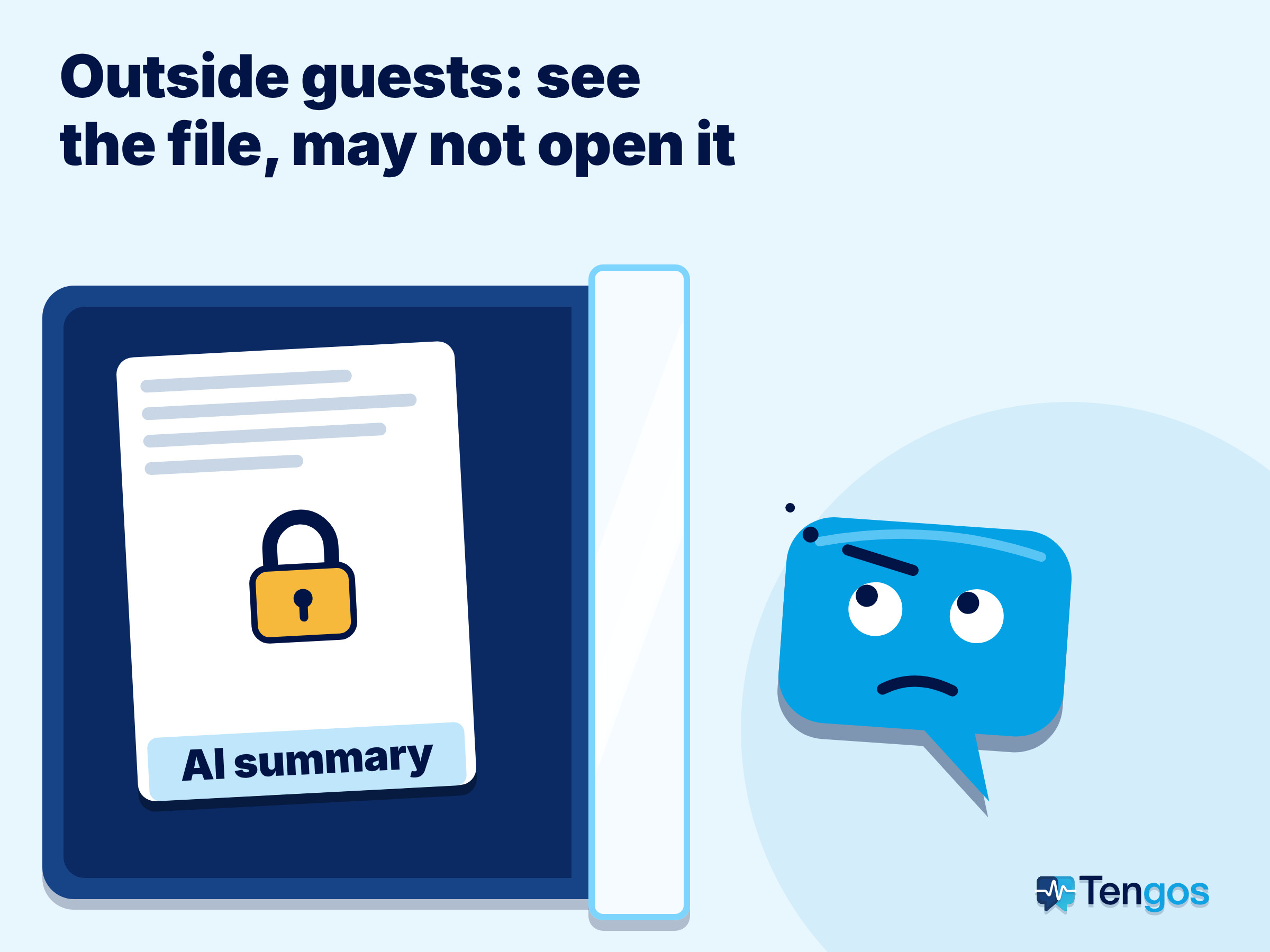
- Google Meet saves notes to the organizer’s Drive. Guests outside the organization can see the attachment on the calendar event, but whether they can open it depends on the file’s sharing permissions.
- Microsoft Teams lets people inside the organization view the recap. People outside can’t view it directly, but the organizer, co-organizers, or presenters can email them the AI summary.
- Google Meet accepts only one spoken language per meeting, so a partner who reads another language still needs a separate translation.
- Always check names, numbers, and deadlines before you send. Don’t forward the raw AI output.
- A plain meeting summary email, or a link that needs no login, is usually the safest way to share a summary with someone outside your company.
Why is sending the summary to a partner harder than it looks?
Once the summary is generated, it feels done. Then you try to send it and hit three snags. The first is access. The summary lives in your company account, your partner uses a different one, and they click the link only to find they can’t open it. The second is language. The meeting was in English, but the person making the decision may be far more comfortable reading Japanese or Korean. The third is trust. AI sometimes mishears a name or a number, and once the recap is in an outside inbox, it’s hard to take back.
So treat the AI summary as a draft. A good meeting summary email is short, accurate, and readable by someone who wasn’t on the call. Check it, fix it, and only then pick a channel that fits whether your partner is in the same system as you or not.
How far do Google Meet, Teams, and Zoom let you share a summary?
Each platform works a little differently, and the biggest difference is whether someone outside your organization can see the result.
Google Meet. The “Take notes for me” feature needs a supported Google Workspace plan or a Google AI plan. Supported spoken languages are English, French, German, Italian, Japanese, Korean, Portuguese, and Spanish, and you can only pick one language per meeting. Notes are saved in the organizer’s Drive, in the “Google Meet” folder, and the document is attached to the calendar event. The organizer can set it to share automatically with invitees. Guests outside the organization still see the attachment, but whether they can open it depends on the file’s sharing permissions (Google Meet Help). The document has two tabs, quick notes and full notes, so you can send the short tab to someone who only needs the gist.
Microsoft Teams. Intelligent recap needs Teams Premium or Copilot. Invited people inside the organization can view the recap, but people outside it can’t. The organizer, co-organizers, and presenters can send the AI summary to people outside the organization through Share, then Share to email. That option is blocked when the meeting has a Confidential or Highly Confidential label, when there is no recording or transcript, or when access to the recording is restricted. The AI summary also needs a transcript in a supported language and a meeting of at least 5 minutes (Microsoft Support).
Zoom. According to Zoom’s guide page, the summary sits in the details of the past meeting, where you can edit it, change the template, or open it in Zoom Canvas (Zoom Support). That page doesn’t cover sharing outside your account, so check the sharing options in your own account before you promise your partner a specific method.
| Google Meet | Microsoft Teams | Zoom | |
|---|---|---|---|
| Requirements | Supported Workspace plan or Google AI | Teams Premium or Copilot | Summary and transcript turned on |
| Where it’s stored | Organizer’s Drive | The meeting’s recap | Past meeting details |
| People outside the organization | See the attachment; opening depends on sharing permissions | Can’t view directly, but you can send it by email | Not covered on the guide page |
| Spoken language | One language per meeting | Needs a supported transcript language | See the guide page |
| Translating the summary | Done separately | Done separately | Done separately |
Five steps to send a meeting summary email to a partner
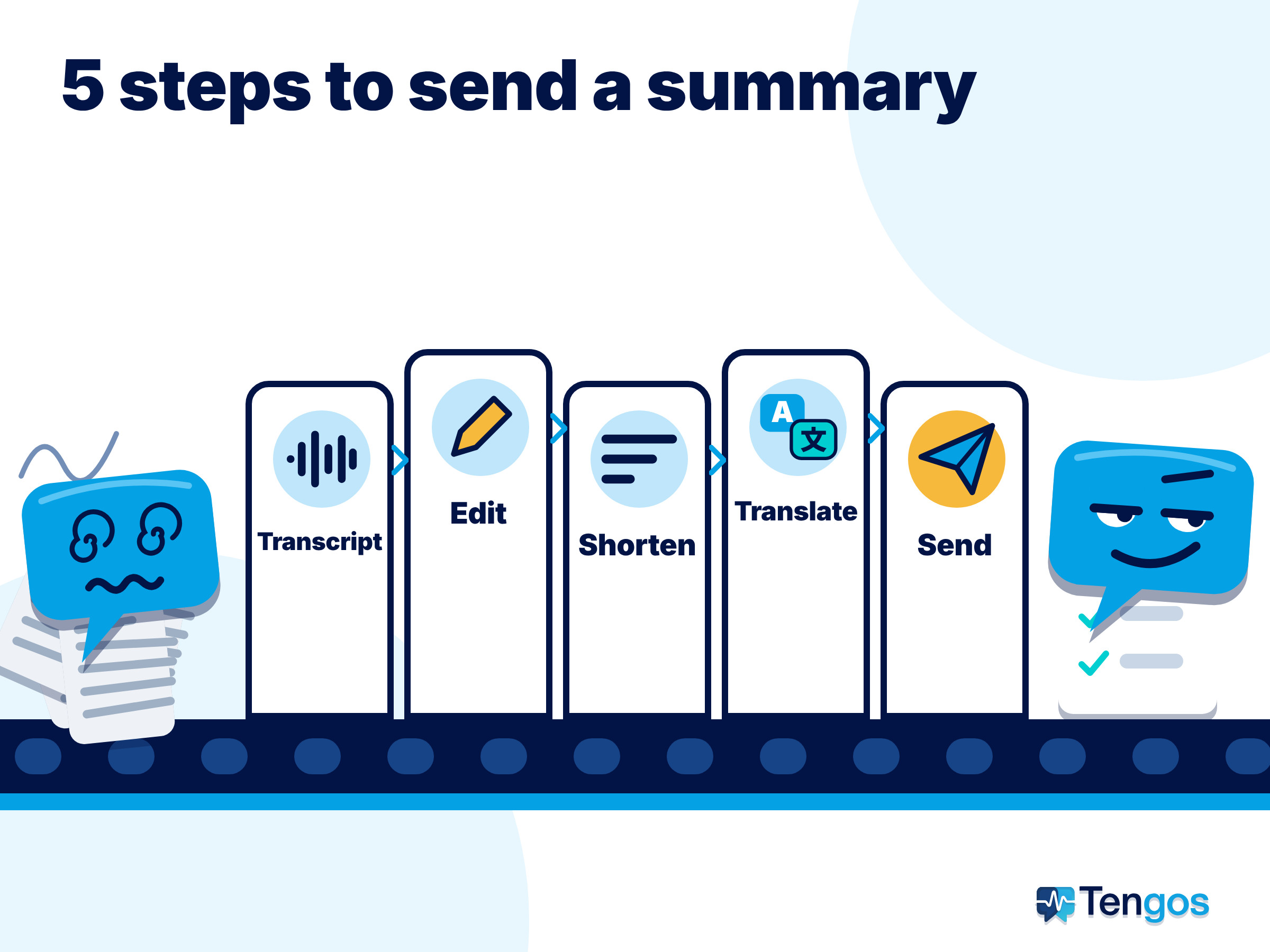
- Grab the transcript and summary right after the call. The longer you wait, the harder it is to remember what the AI got wrong. If the meeting wasn’t recorded, use a tool that accepts an audio file.
- Read it and fix it. Check names of people and companies, numbers, deadlines, and who owns each task. This step decides whether the summary can be trusted.
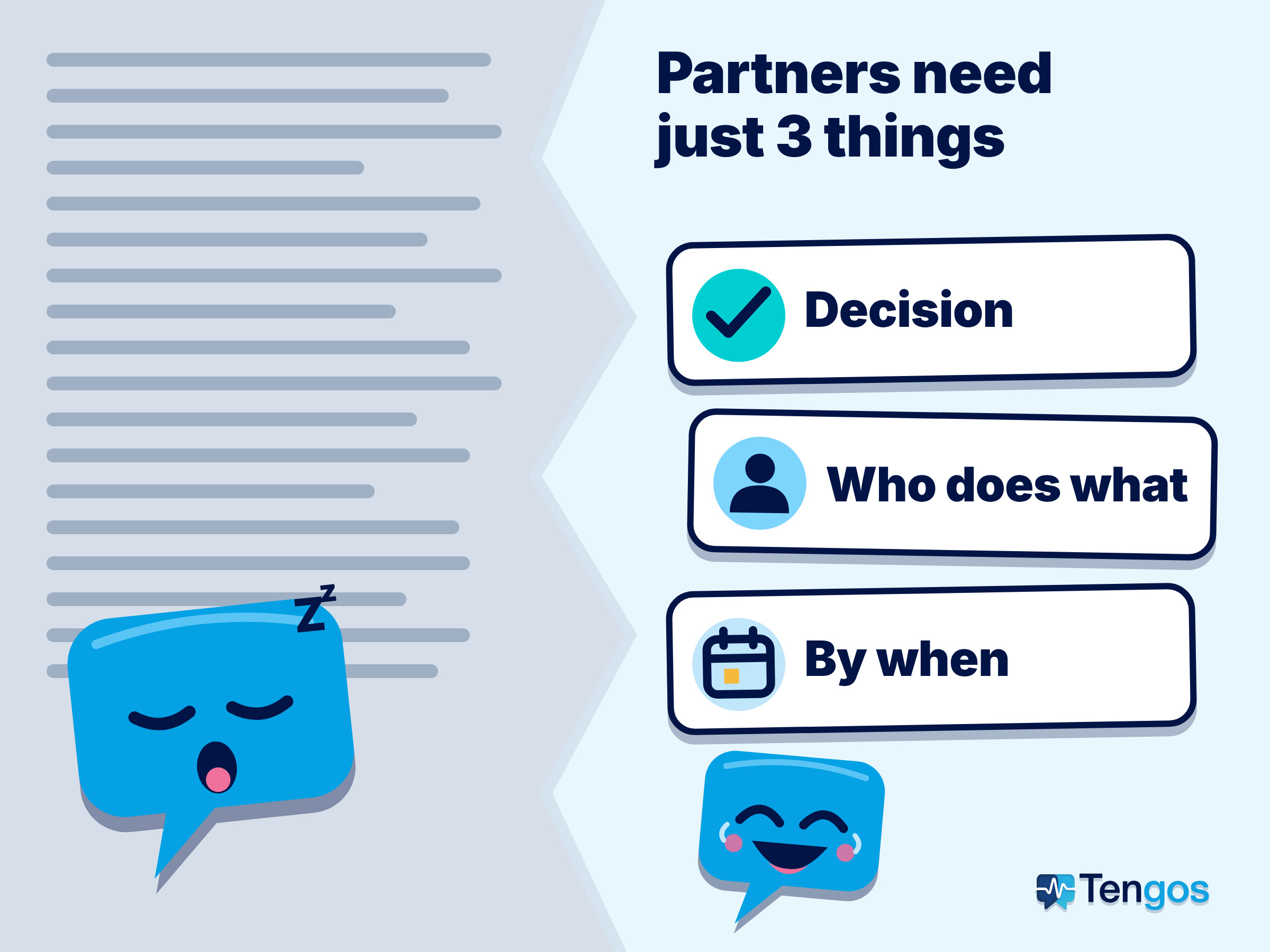
- Trim it for the reader. A partner usually needs three things: what was decided, who does what, and by when. Keep the long discussion in the full version.
- Translate it into a language your partner reads comfortably. Leave proper names and industry terms as they are. If the two of you share fixed vocabulary, use a glossary so the translation stays consistent.
- Send it through a channel they can open. For a partner outside your organization, a meeting summary email or a link with no login is usually safer than sharing a file in Drive or Teams.
Here’s a small trick for the opening of your meeting summary email (or any meeting recap email template): “Below is a summary of today’s meeting, with the original in English and a Japanese translation underneath. If anything looks off, please let me know.” It’s polite, it invites your partner to correct you, and you catch mistakes early.
When should you use a separate tool instead of the one built into Meet or Teams?
Built-in tools are handy when both sides use the same platform and belong to the same organization. They fall short when your partner is outside, when you meet on several different platforms, or when the summary needs to exist in several languages. In those cases, a standalone tool that doesn’t depend on where the meeting happened makes the meeting summary email easier to write and send.
Tengos is an app in that category. According to its AI Notes page, you can request summaries in multiple languages, share them by link, email, or integrations such as Notion, Slack, and Jira, and the summary labels each speaker by name. The app also has Import Audio for bringing in a recording, Glossary for fixing terminology, export to SRT, VTT, MD, and TXT, and Share Real-time Link so guests can watch live without logging in. It translates 60 languages, and the Free plan includes 120 minutes a month with no credit card needed. You can get it on the App Store or Google Play.
If you want a similar routine for online events, see how to summarize a webinar and translate the recap. If English isn’t your first language and meetings are hard to follow, read this post. If you’re weighing live translation on Zoom, Meet, and Teams with a free account, there’s a separate comparison. And meeting productivity with an AI summary tool covers how to cut down meeting time.
What should you watch for when you share a summary outside your company?
- Ask before you record. If outside guests are on the call, tell them in advance. Some places require everyone’s consent.
- Be careful with sensitive information. If the summary contains pricing, contracts, or customer data, check whether your partner is allowed to see that part. Teams even blocks email sharing for meetings with a high-confidentiality label.
- Mark the original. When you send a translation, say clearly which version is the original to avoid confusion about terms or deadlines.
- Ask a native speaker to check the important parts. AI translates fast, but a polite tone or a commitment needs a human eye.
FAQ
Are AI meeting summaries accurate?
Usually accurate enough to serve as a draft, but AI can mishear names or numbers, or miss context. Read and correct it before you send it to anyone.
Can a partner outside my company view a Google Meet summary?
They can see the attachment on the calendar event, but whether they can open it depends on the sharing permissions of the document in the organizer’s Drive. To be sure, send the content by email.
Does Teams let me send an AI summary to someone outside my organization?
Yes, as long as you are the organizer, a co-organizer, or a presenter, and the meeting isn’t blocked by a sensitivity label or a recording restriction.
How do I send a meeting summary email in my partner’s language?
Translate the corrected summary into that language, keep proper names and terms as they are, and send it along with the original. If you meet with the same partner often, a glossary keeps translations consistent.
Is Tengos free?
The Free plan includes 120 minutes a month and needs no credit card. For paid plans and other limits, see the Tengos pricing page.