How to Translate a YouTube Video Without Subtitles in Your Language: 4 Ways That Work
Published on Nov 17, 2026
Table of Contents
You can translate a YouTube video even when the creator never added subtitles in your language, but the best method depends on the video and on what you need from it. This guide compares four practical ways, from YouTube’s own settings to a live transcript with translation, and ends with a 5-minute test so you can pick the right one before you invest an hour in a long video.
Key Takeaways
- Start with YouTube itself. If a video has captions, you can usually switch the subtitle language in the player, and many videos offer auto-translated subtitles. Quality depends on the original captions.
- Auto-dubbing can play a translated audio track on supported videos. Check the audio track option in the player settings; availability depends on the source language and on the creator.
- When the video has no usable captions, tools that work on any audio help: Chrome’s Live Caption and Live Translate, or an app that listens and shows a translated live transcript.
- Every automatic method can stumble on names, numbers, jargon and accents. Check anything important against the original, and do not rely on machine output alone for medical, legal or financial decisions.
- Tengos works on iOS, Android and as a Chrome extension, supports 60+ languages and has a Free plan with 120 minutes per month, so you can test the transcript approach at no cost.
Why is a YouTube video hard to follow without subtitles in your language?
A video is harder than an article because speech disappears as soon as it is spoken. You cannot skim it, and you cannot copy a sentence into a translator without a transcript. If the speaker has an accent, talks fast or uses technical terms, even a strong listener in a second language can lose the thread.
YouTube’s captions are the usual fix, but they are not universal. YouTube’s help page on automatic captions explains that automatic captions are produced by machine learning, so quality varies, and that they may not be available for every video, for example when the sound quality is poor, speakers overlap, several languages are mixed or there is a long silence at the start. Live automatic captions are limited to English. That is why it helps to know more than one route.
Which of the four ways fits your video?
There is no single best method, only a best fit. This table is a general guide; individual videos and apps vary.
| Way | How it works | Best for | Watch out for |
|---|---|---|---|
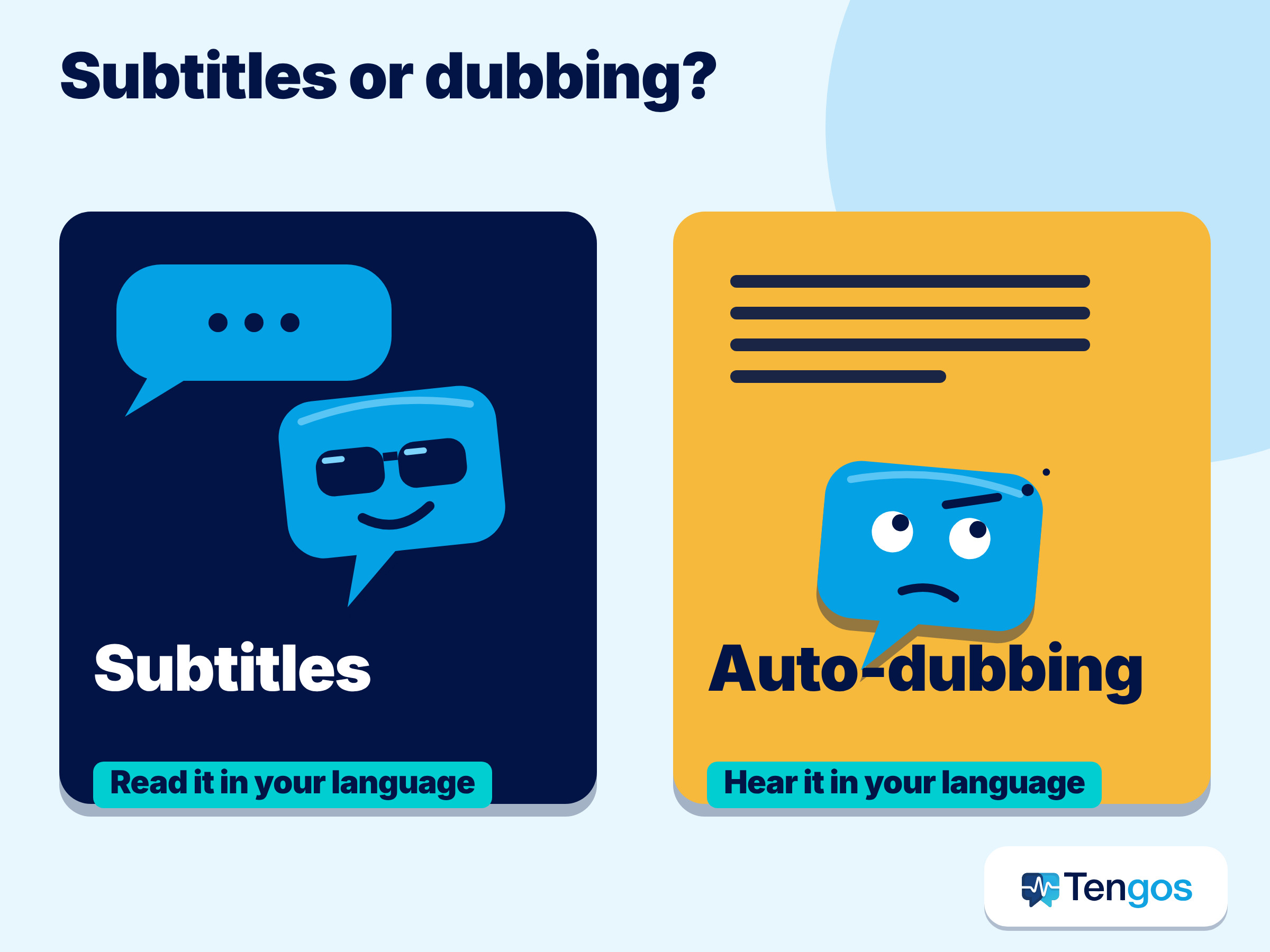
| 1. YouTube subtitles and auto-translate | The player shows captions and can translate them into another language | Videos that already have captions | Translated captions inherit mistakes from the original captions |
| 2. YouTube auto-dubbing | A translated audio track plays instead of the original voice | Listening while doing something else | Only some videos and languages; names and jargon can be wrong |
| 3. Chrome Live Caption and Live Translate | The browser captions any audio on your device and can translate the captions | Videos without usable captions on a computer | Supported languages are limited, and it works in the browser only |
| 4. A live transcript app such as Tengos | The app listens to the audio and shows the original and the translation as text | Long, important or technical videos you want to review | You read rather than watch, and you need a clear audio source |
Most people end up combining two: YouTube’s own settings for a quick look, and a live transcript when the content matters.
Way 1: How do you use YouTube’s subtitles and auto-translate?
Start with the player, because it costs nothing and takes seconds. On a computer, YouTube’s captions help page says to open the video and look for the closed captions (CC) icon at the bottom right of the player; it appears only if the video has captions. Click it to turn captions on.
Then open the player settings and look at the subtitle options. When a video has captions, the settings menu can list the available languages, and many videos also offer an auto-translate choice that machine-translates the captions into the language you pick. Menus change between apps and over time, so if you do not see an option, the video probably does not have captions that can be translated.
A few tips for better results:
- Check the original captions first. If the English captions are wrong, the Spanish or Vietnamese translation will be wrong too, because it translates the captions and not the audio.
- Slow the video down. The player’s speed setting gives you time to read, especially for dense content.
- Use the transcript view when it exists. Reading the whole text is faster than watching, and you can paste short passages into a translator.
- Treat numbers with care. Pause and confirm dates, prices and measurements by ear.
Way 2: Can YouTube’s auto-dubbing play the video in your language?
Sometimes. YouTube’s help page on automatic dubbing says it creates translated audio tracks so videos can reach more viewers, and dubbed videos are marked as auto-dubbed in the description. Viewers can set preferred languages for audio, titles and descriptions, and can switch between the original and the dubbed audio on a specific video. According to YouTube’s own explainer published in May 2026, auto-dubbing is available in 27 languages.
Support depends on the original language. The help page says English has the widest set of target languages, while most other source languages mainly dub into English, with a few alternatives. It also lists reasons a video may be ineligible, such as very long videos, little speech, unsupported source languages or very fast speech, and it warns that dubs can contain errors, especially with proper nouns, idioms and jargon. Creators cannot edit an automatic dub directly.
So auto-dubbing is a convenience for casual watching, not a guarantee. If you hear something that sounds off, switch back to the original audio and read captions or a transcript instead.
Way 3: What can Chrome and Android do for videos without usable captions?
If a video has no captions, your device may still be able to caption it. Chrome’s help page on captions and translations says you can turn on Live Caption from Chrome’s Settings under Accessibility. It also says the audio and captions are processed locally and never leave your device. For translation, the same page describes Live Translate, which sends the captions to Google for translation, and it notes that you can translate into more than 100 languages. The source languages you can caption depend on your device and on the language packs you download, and the page says Live Translate uses more power than usual.
Practical points:
- This works on audio playing in Chrome, so it also helps with sites other than YouTube.
- You must download the language pack for the language being spoken before captions appear.
- Captions float over the page, so they are good for following along but awkward to save or search later.
Google’s Translate help page on live translation describes related features for conversations and headphones on phones; it is worth checking if you mostly watch on mobile, though those features are designed for live conversations rather than for recorded videos.
Way 4: How do you get a live transcript with translation from any video?
When you want a record you can read, scroll back through and keep, a live transcript with translation is the strongest option. The idea is simple: an app listens to the audio, shows what was said in the original language, and shows your language underneath. Because it works on sound, it does not depend on the creator having added captions.
Tengos is one such app. Based on its pricing page, it provides real-time speech transcription and real-time text translation across 60+ languages, and it is available as an iOS app, an Android app and a Chrome extension. It also accepts uploaded audio and video files, and the Free plan includes 120 minutes per month and 5 file uploads per month. The page also advertises a 50% education discount. Check the page for current limits, since plans can change.
Here is a simple way to use it with YouTube:
- Choose your languages. Set the spoken language of the video and the language you want to read.
- Play the video near the microphone, or use the Chrome extension on a computer. Keep the volume clear and avoid background noise.
- Read along. The original and translated text appear together, so you can check a term in both languages.
- Save what matters. Export the transcript or ask for an AI summary of a long talk if you only need the key points.
This approach suits lectures, conference talks, tutorials and interviews, where details matter and you may want to return to a sentence. It is less suited to fast music videos or clips with heavy background sound.
What should you check before trusting an automatic translation?
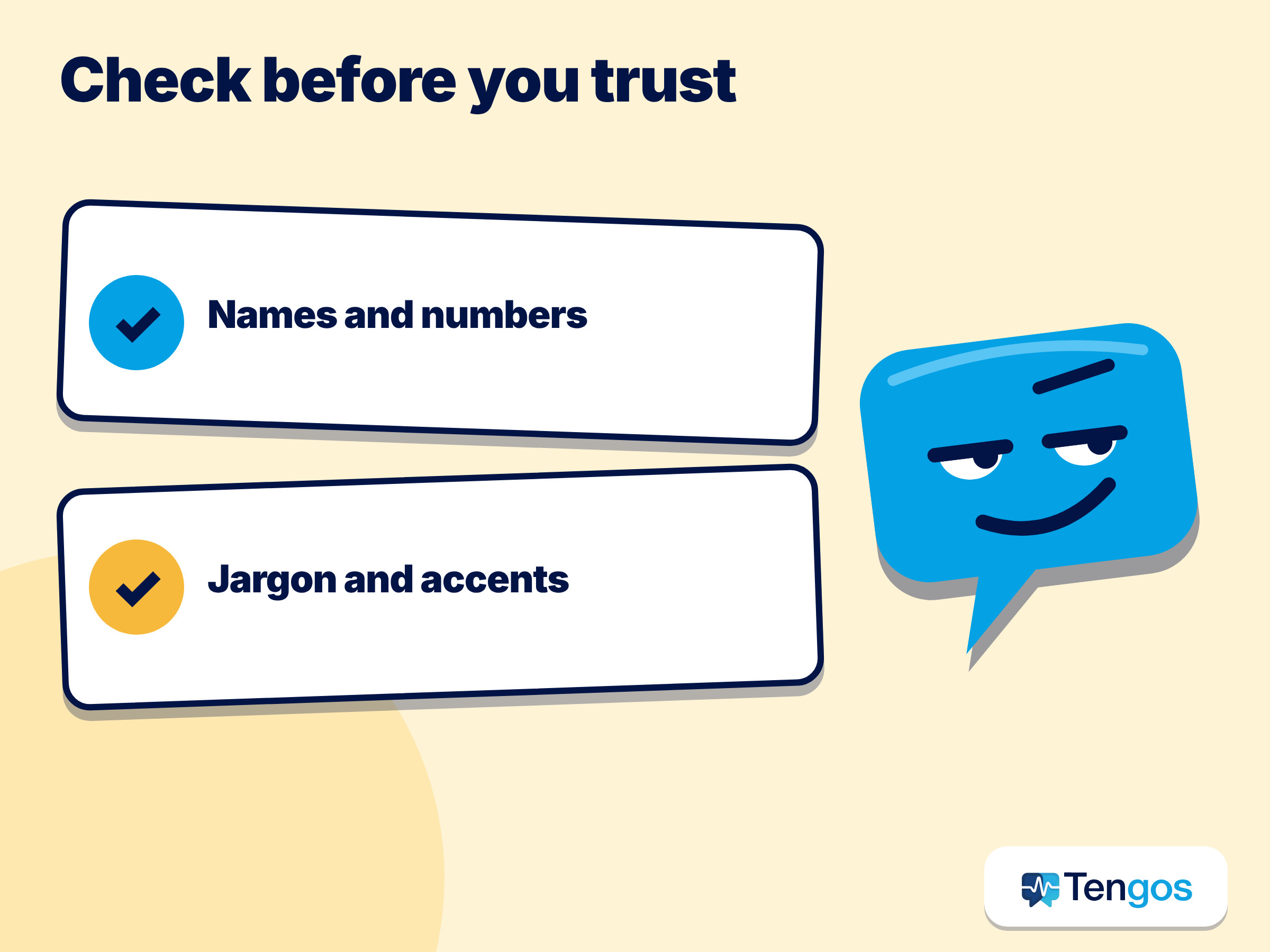
All four methods rely on speech recognition and machine translation, and both steps can fail. The usual weak points are names, numbers, technical terms, strong accents and several people talking at once.
Check three things on anything important. First, numbers: dates, prices, doses, measurements. Second, names: people, products, places. Third, the sense of a key sentence: if the translation sounds odd, replay the audio. Advice for working with human interpreters is a good template, because the same habits apply: short sentences, no idioms, confirm key instructions. For legal, medical or financial content, use a qualified human translator and treat machine output as a helper.
An illustrative example, not a real case: suppose you want to follow a 40-minute tutorial recorded in Korean with no English captions. You open the player and find that only Korean automatic captions exist, so auto-translate gives a rough English version. You then run a live transcript with Korean and English side by side, and you notice that a software setting is named differently in the two outputs. You replay that second of audio to confirm the name, and note it down. That small check is the difference between a quick skim and reliable notes.
How can you test the options in five minutes?
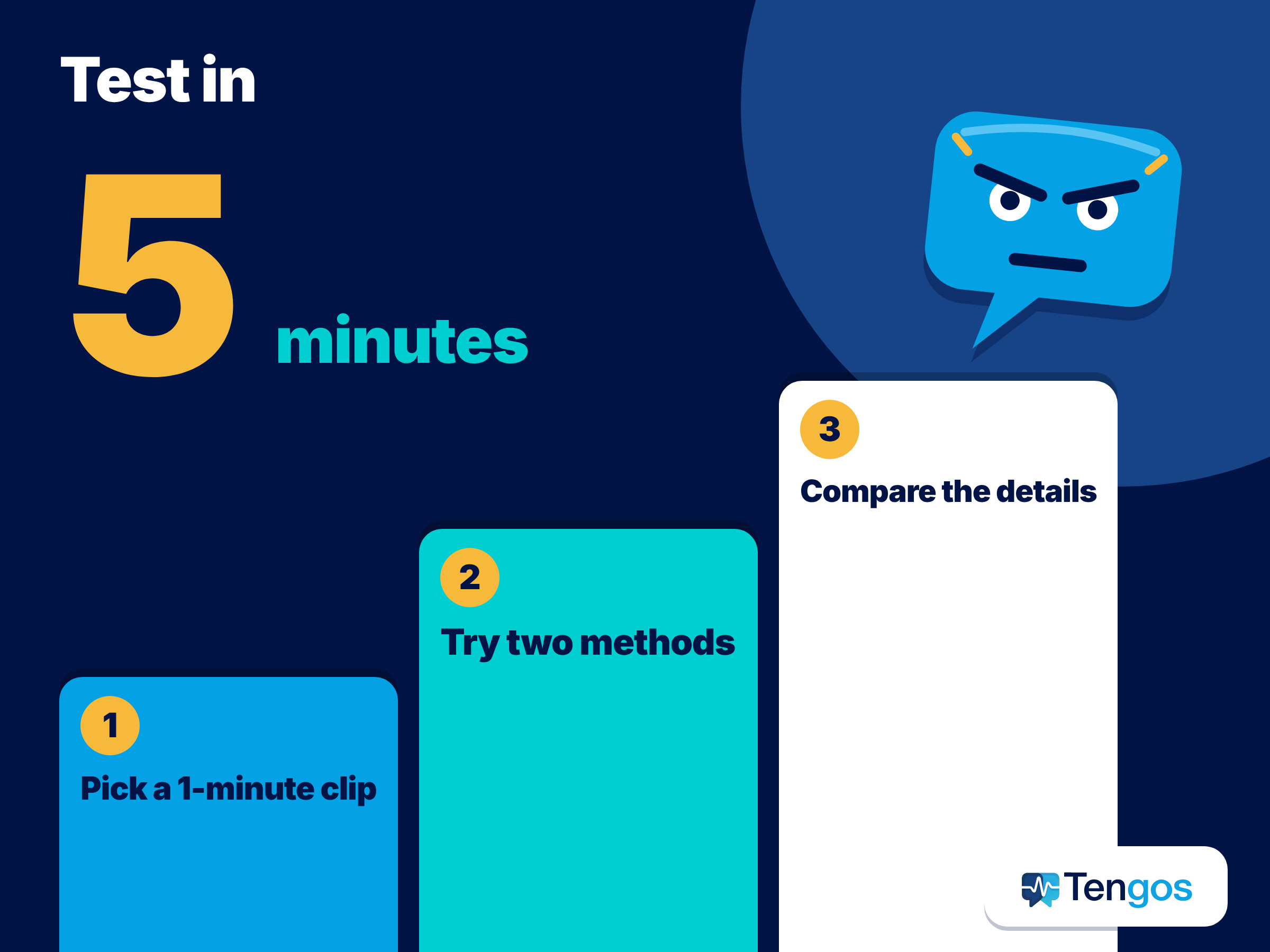
Before you commit to a two-hour lecture, run a short test. It costs nothing and shows you which method handles your video.
- Pick a one-minute clip. Choose a part with a name, a number and a technical term.
- Try YouTube’s captions and auto-translate. Note whether they exist and how they read.
- Try auto-dubbing or Live Caption. Note delay, accuracy and any missing sentences.
- Try a live transcript. Compare how each tool handles the name, the number and the term.
- Choose your default. Use the method that got the details right, and keep a second one as a backup.
Is it fine to translate videos you do not own?
For personal viewing and study, using a translation or caption tool on a video you can legally watch is normal. Sharing a full transcript or translation publicly is different: it may involve the creator’s rights, so check the video’s licence and the platform’s terms. If you will quote a transcript in a report or a course, cite the source video and keep the quote short. If you record a live conversation in a meeting rather than a public video, tell the participants and check your organisation’s policies. The Tengos website states that data is encrypted in transit and at rest; for anything confidential, review the privacy terms of any tool before you use it.
Frequently Asked Questions
Can I translate a YouTube video for free?
Yes, to a degree. YouTube’s captions and any auto-translate option cost nothing, Chrome’s Live Caption is a browser setting, and Tengos has a Free plan with 120 minutes per month. Limits and availability change, so check each service.
Why can’t I see auto-translate on some videos?
Automatic captions and translation are not available for every video. Poor sound, overlapping speakers, mixed languages or a long silence at the start can prevent captions, and without captions there is nothing to auto-translate. Use Live Caption or a live transcript instead.
Does auto-dubbing change the original audio?
No. It adds a translated audio track, and viewers can switch between the original and the dubbed audio on a given video. Quality varies, and proper nouns and jargon are common trouble spots.
Is machine translation accurate enough for study or work?
It is usually fine for getting the gist of everyday content and weaker for names, numbers and specialised terms. Verify important details against the original audio and avoid relying on it alone for high-stakes decisions.
What is the best way to follow a long video in another language?
Use a live transcript with translation, so you can read at your own pace, scroll back and save the text. Tengos offers this in 60+ languages, with a Free plan you can try first.
Final thoughts
To translate a YouTube video without subtitles in your language, work from the simplest option to the most flexible: YouTube’s captions and auto-translate, then auto-dubbing, then Chrome’s Live Caption, and then a live transcript for anything long or important. Run the five-minute test on a short clip first, check names and numbers, and keep the original audio as the final judge. If you would like to try the live transcript approach, you can explore Tengos at tengos.ai.
Related reading: Live meeting translation