Lecture Transcription and Translation for International Students: How to Follow Class in Another Language Without Missing a Point
Published on Nov 21, 2026

Table of Contents
If you are studying in a language that is not your first, the most useful habit is to stop trying to catch every word live and instead build a small system: prepare before class, use live captions or lecture transcription during class, and review a written record afterwards. This guide covers what international students can realistically do about lecture transcription and translation, what the big platforms say their captions can and cannot do, and where an app like Tengos fits for a student who is functional in the language but not yet fluent.
Key Takeaways
- International students are a large group. IIE’s Open Doors report counts 1,146,163 international students in U.S. higher education in 2025/26, so language support for lectures is an everyday need, not an edge case.
- Prepare before class. Vocabulary lists, slides and reading lists turn an unknown lecture into a familiar one.
- Use captions as a safety net, not a replacement for listening. Microsoft and Google both warn that automatic captions can be incomplete or inaccurate.
- Keep a transcript. A written record lets you re-read a fast explanation, look up terms and check numbers and deadlines.
- Ask first. Check your instructor’s and your institution’s rules before you record or transcribe a class.
- Review within a day. Handwritten notes combined with a transcript beat either one alone for most students.
- Tengos supports 60+ languages on iOS and Android, with real-time transcription, translation and AI summaries, and a Free plan with 120 minutes per month to try it.
Why is following a lecture in another language so tiring?
Because you are doing three jobs at once: understanding the words, understanding the idea, and deciding what to write down. A native speaker does the first job automatically. You may spend most of your attention on it, which leaves little for the second and third.
Speed makes this worse. Lecturers move fast, use idioms, refer back to earlier slides and switch between formal and casual speech. Technical terms add another layer: a word you know from your own language may sound completely different in the language of instruction. Seen this way, a missed point is usually not a sign that you are a weak student. It is what happens when a limited resource, your attention, is stretched across too many tasks.
The size of the group facing this is large. According to IIE’s Open Doors international students data, 1,146,163 international students were enrolled at U.S. higher education institutions in 2025/26, a 3 percent decline from the previous year, and 57 percent of them studied STEM fields, where terminology is dense. Open Doors is the annual report sponsored by the U.S. Department of State and implemented by IIE, so it is a good reference if you want to see where students come from and what they study.
What should you prepare before class?
Preparation moves vocabulary work out of the lecture hall and into a calm hour at your desk. Three things are worth doing every time.
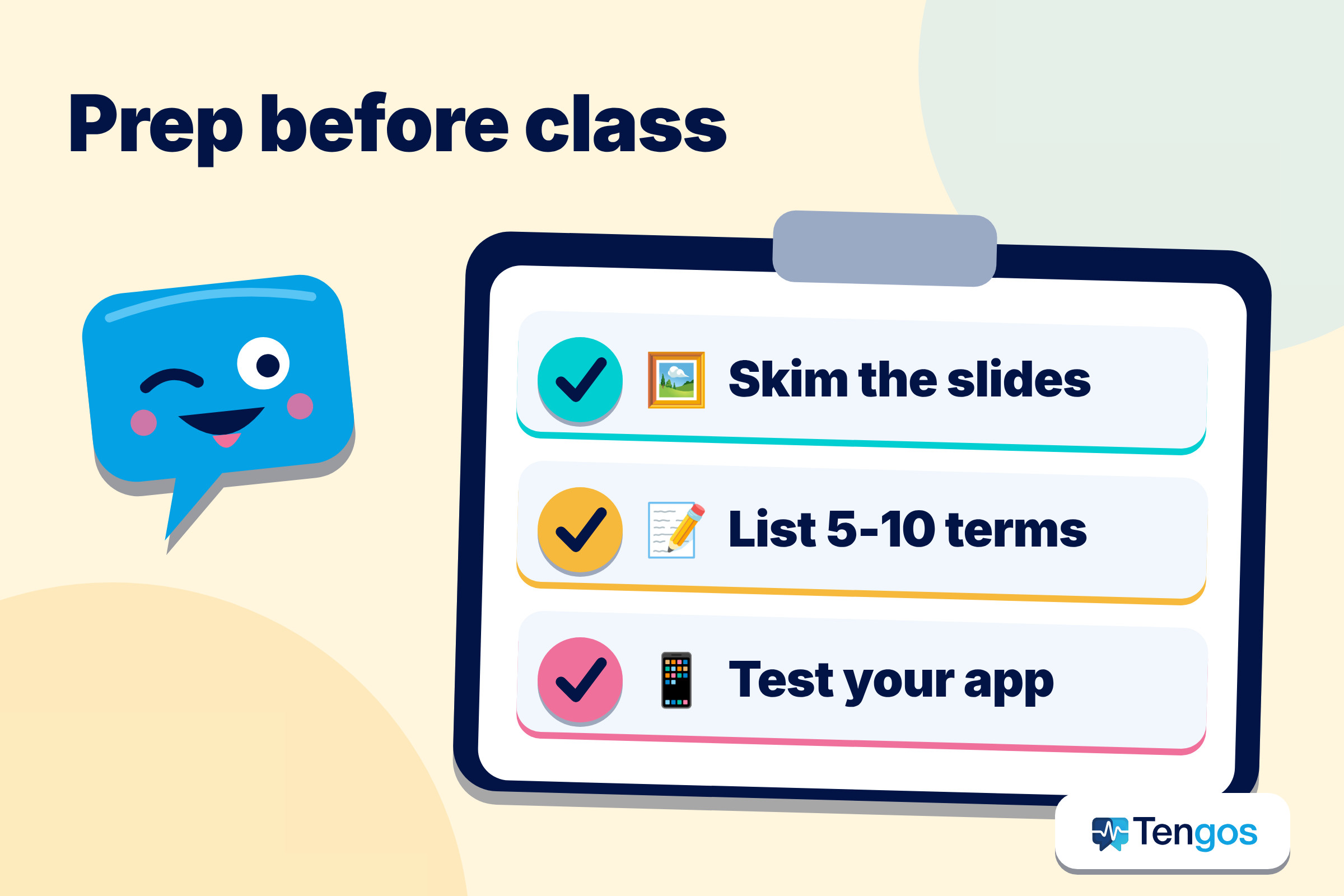
- Skim the slides or reading first. If your instructor posts them in advance, read the headings and underline ten words you do not know.
- Build a short term list. Write each term in the language of instruction and in your own language, with one example sentence.
- Set up your tools. Open the app you plan to use, check the language pair, and test the microphone from your usual seat.
A simple table keeps the routine light:
| When | What to do | Time needed |
|---|---|---|
| Before class | Skim slides, list 5-10 terms, check your app and battery | 15-20 minutes |
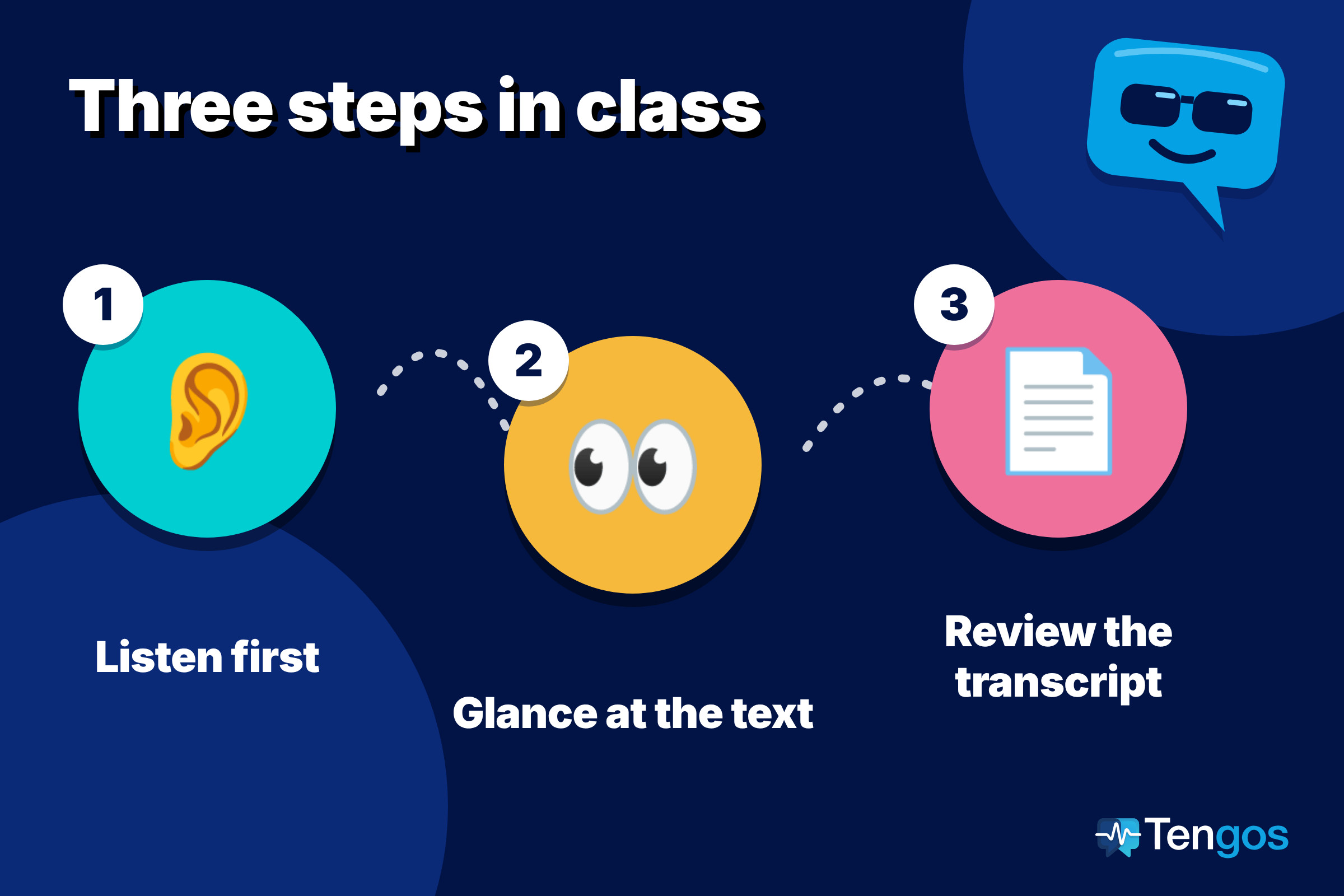
| During class | Listen first, glance at captions or transcript when you lose the thread | The whole session |
| Within 24 hours | Re-read the transcript, fill gaps, write three questions | 20-30 minutes |
| Before the next class | Send your questions or bring them to office hours | 5 minutes |
What do live captions in common tools actually do?
They convert speech to text in real time, with real limits, and the tool makers say so themselves. Knowing the limits helps you decide when to trust a caption and when to double-check.
On the presentation side, Microsoft’s page on real-time captions and subtitles in PowerPoint explains that captions show speech in the spoken language, while subtitles can be translated into another language. It says PowerPoint can display captions in more than 60 languages, but it lists only 8 fully supported spoken languages and marks 15 more as preview with lower accuracy. It also relies on a cloud speech service, so you need a reliable internet connection for the whole presentation.
Google’s help page on presenting slides with captions warns that captions are machine-generated and may not be a complete or accurate transcription, and that accent and intonation affect results. It also notes that the captions do not include punctuation and are not stored. That last point matters for students: if the caption is not stored, you cannot review it later.
For online classes, Google Meet’s transcripts are saved to the organiser’s Google Drive and emailed after the meeting, but the page lists only 8 transcript languages: English, French, German, Italian, Japanese, Korean, Portuguese and Spanish. If your course is in another language, or you need a language pair that the platform does not cover, you need a different route.
| Option | What it gives you | Limit to know |
|---|---|---|
| PowerPoint captions and subtitles | Live captions and translated subtitles during a presentation | Needs a stable connection; only some languages are fully supported |
| Google Slides captions | Live captions in the browser | Not stored; may be incomplete |
| Google Meet transcripts | A saved transcript for an online class | Only the organiser controls it; 8 languages |
| Live translate in Google Translate | Speech-to-speech translation in listening, conversation or text modes | Offline use limited to certain phones and language pairs |
How does a conversation or listening mode fit a classroom?
Mostly outside the lecture itself. Google’s page on live translate describes three modes: Listening, Conversation and Text only. Conversation mode plays the translation aloud and lets two people take turns, which suits a short chat with a classmate or a question at a professor’s desk. Listening mode is meant for hearing speech through headphones or a phone held to the ear. During a long lecture, a phone speaking aloud is distracting for you and for others, so text on screen is the practical choice.
That is the main design decision for students: for the lecture, you want text you can glance at; for office hours and group work, you want a two-way conversation tool.
Should you record or transcribe a lecture at all?
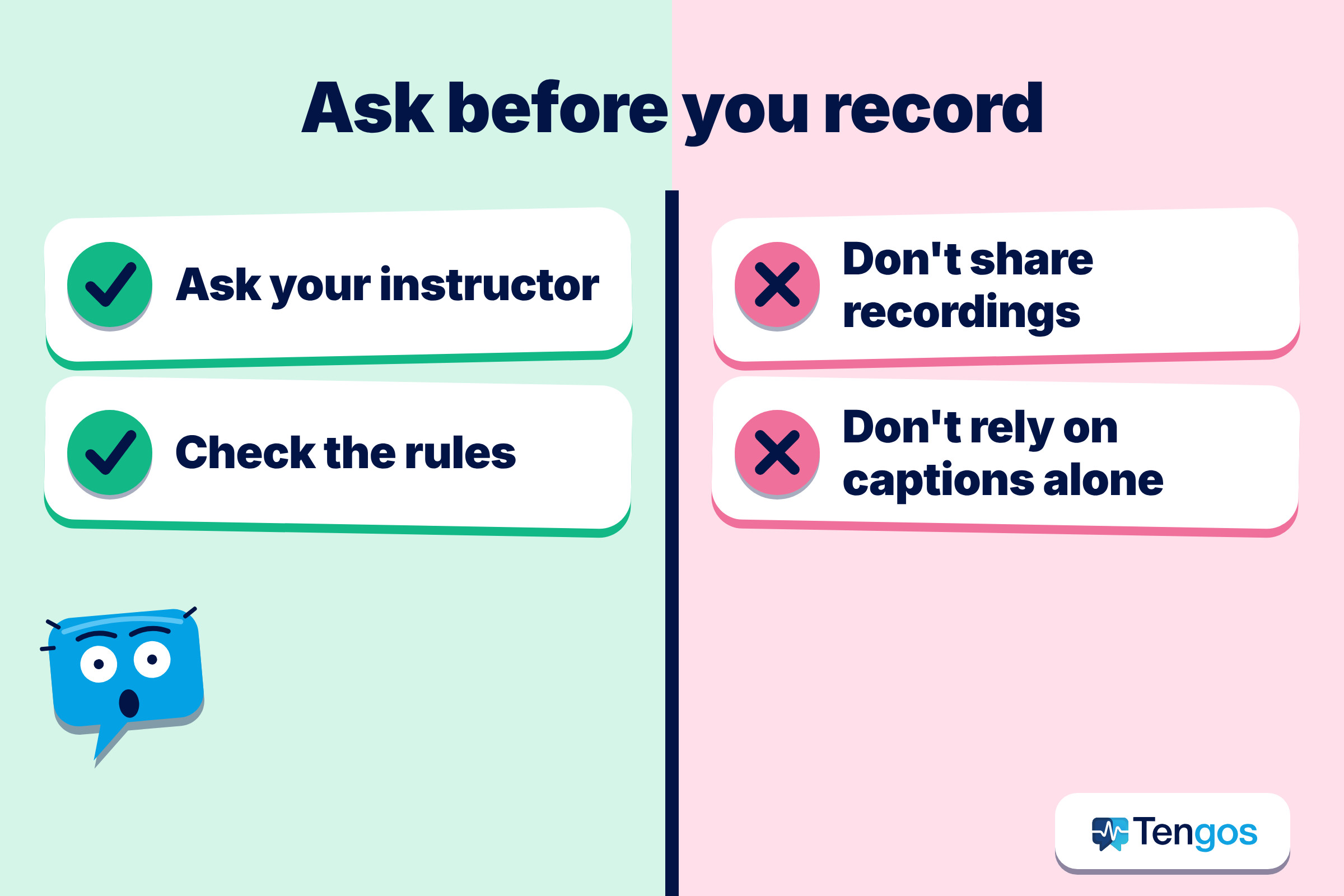
Only with permission. Rules differ between institutions, between courses and sometimes between instructors. Some lecturers welcome audio recordings, some allow them for accessibility reasons, and some do not allow them. Ask your instructor or check your institution’s student policy before you start, and never share a recording or transcript beyond what the rules allow.
If recording is not allowed, you still have options: typed or handwritten notes, a transcript of your own spoken summary after class, or captions that are not stored. If you need accommodations because of your language level, your international student office or disability and accessibility service can usually tell you what is possible.
How do you turn a transcript into real learning?
A transcript is raw material. Reading it once is not studying. The following routine takes about half an hour per lecture.
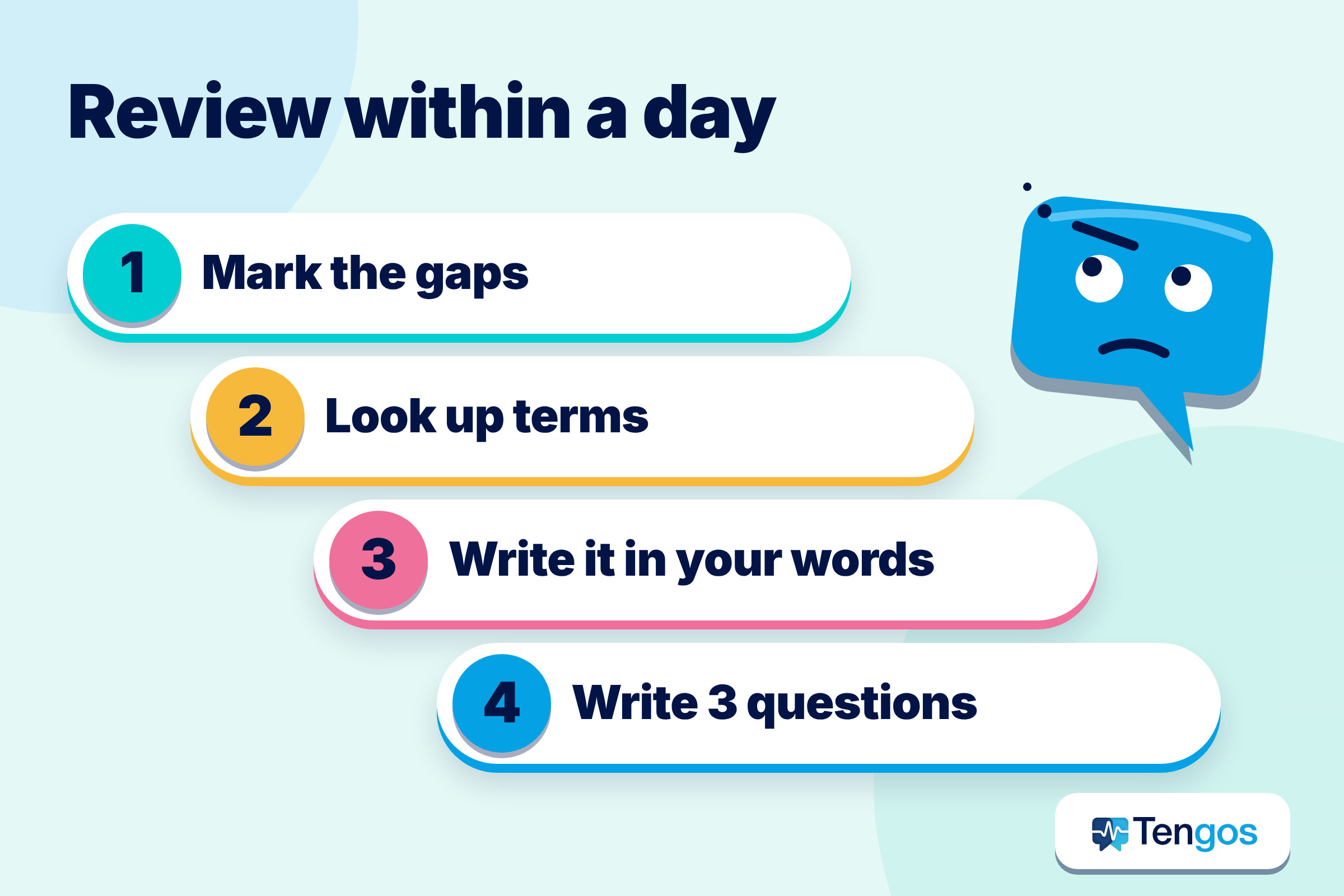
- Mark the gaps. Highlight every sentence you did not understand live.
- Look up the terms. Add new words to your term list with a translation and one example.
- Write the idea in your own words. Two or three sentences per section, in whichever language you think best in.
- Check numbers, dates and deadlines. These are the details most often misheard.
- Write three questions. Bring them to the next class or to office hours.
Cornell’s Learning Strategies Center describes the Cornell note-taking system, developed by education professor Walter Pauk, and says research shows handwritten notes are more effective than typing on a laptop. A sensible way to combine this with a transcript is to take short handwritten notes in class, then use the transcript afterwards to fill what you missed.
For recorded or online lectures, the same centre’s page on learning from online lectures and discussions advises pausing prerecorded video every 10 to 15 minutes to review your notes and warns that speeding up videos may reduce understanding and retention. It also reminds students to tell instructors about problems, since they cannot fix what they do not know about.
Where does Tengos fit for a student?
Tengos is an AI app that provides real-time transcription and translation in 60+ languages, plus AI summaries, on iOS and Android. For a student, the useful pattern is simple: let the app listen where recording is allowed, glance at the text when you lose the thread, and read the full transcript and summary afterwards to check what you missed. It is also handy outside the lecture hall, for example in a study group where people mix languages or in a conversation with an advisor.
An illustration, not a real case: a student studying economics in a second language sits in a fast-paced lecture, misses a definition, glances at the live text, catches the term, and moves on. After class, she reads the transcript, adds three words to her list, and sends her professor one question by email. The point is not that the tool does the studying. It protects her attention during the lecture and gives her something to review afterwards.
Tengos has a Free plan with 120 minutes per month, so you can try it on a short session before relying on it. You can get it for iPhone and iPad on the App Store or for Android on Google Play. If you also attend webinars or fast meetings, our guide on keeping up when someone talks too fast with live captions covers how to ask for a slower pace and review a transcript afterwards.
What mistakes should you avoid?
Most problems come from over-trusting a single tool or skipping the review step.
- Do not rely on captions alone. Vendors say captions may be incomplete or inaccurate, so treat names, numbers and definitions as things to verify.
- Do not record without permission. Ask first and follow your institution’s rules.
- Do not skip the test. Try your app in a quiet room and in a real classroom before an important session, with the language pair you need.
- Do not leave the transcript unread. Review it within a day, while the lecture is still fresh.
- Do not forget the battery and the connection. Several caption tools need a stable internet connection, and live transcription uses power.
- Do not hide the problem. Tell your instructor or student support what is hard. They can only help with what they know about.
Related: Live captions with translation for foreign livestreams and webinars
FAQ
What is the best app for lecture transcription as an international student?
It depends on your language pair, your device and whether recording is allowed in your class. Platform captions from PowerPoint, Google Slides or Google Meet cover only some languages and do not always keep a transcript, so many students also try a dedicated app such as Tengos. Test two options in a real class before choosing.
Can I use live translation during a lecture?
You can, if the tool supports your languages and the class rules allow it. Text on screen is usually more practical than audio, because audio can disturb others. Always check with your instructor first.
Are automatic captions accurate?
Not always. Microsoft lists only 8 fully supported spoken languages for PowerPoint captions and marks others as preview with lower accuracy, and Google warns that its captions may not be a complete or accurate transcription. Use them as a guide and verify key details.
Is it allowed to record a lecture?
It depends on your institution and your instructor. Ask before you record, and follow the rules about sharing.
How do I try Tengos before the semester starts?
Install the Tengos app and use the Free plan, which includes 120 minutes per month. Run a short session in your study language pair and read the transcript afterwards to see how it handles terms and numbers.