How to Translate a Conversation in Real Time: A Step-by-Step Guide for Face-to-Face Talks
Published on Nov 15, 2026
Table of Contents
You can translate a conversation in real time with the phone already in your pocket, but the result depends far more on how you set it up and how you speak than on which app you pick. This guide walks through a step-by-step method for face-to-face talks, compares the main options, and ends with a 2-minute test you can run before a conversation that matters.
Key Takeaways
- A phone on the table is enough to translate a conversation in real time. Google, Apple and Microsoft all offer a conversation or live translation mode, and Tengos adds a live transcript with translation in 60+ languages.
- Setup decides most of the quality: choose the two languages, download offline packs if you may lose signal, and put the microphone close to whoever is speaking.
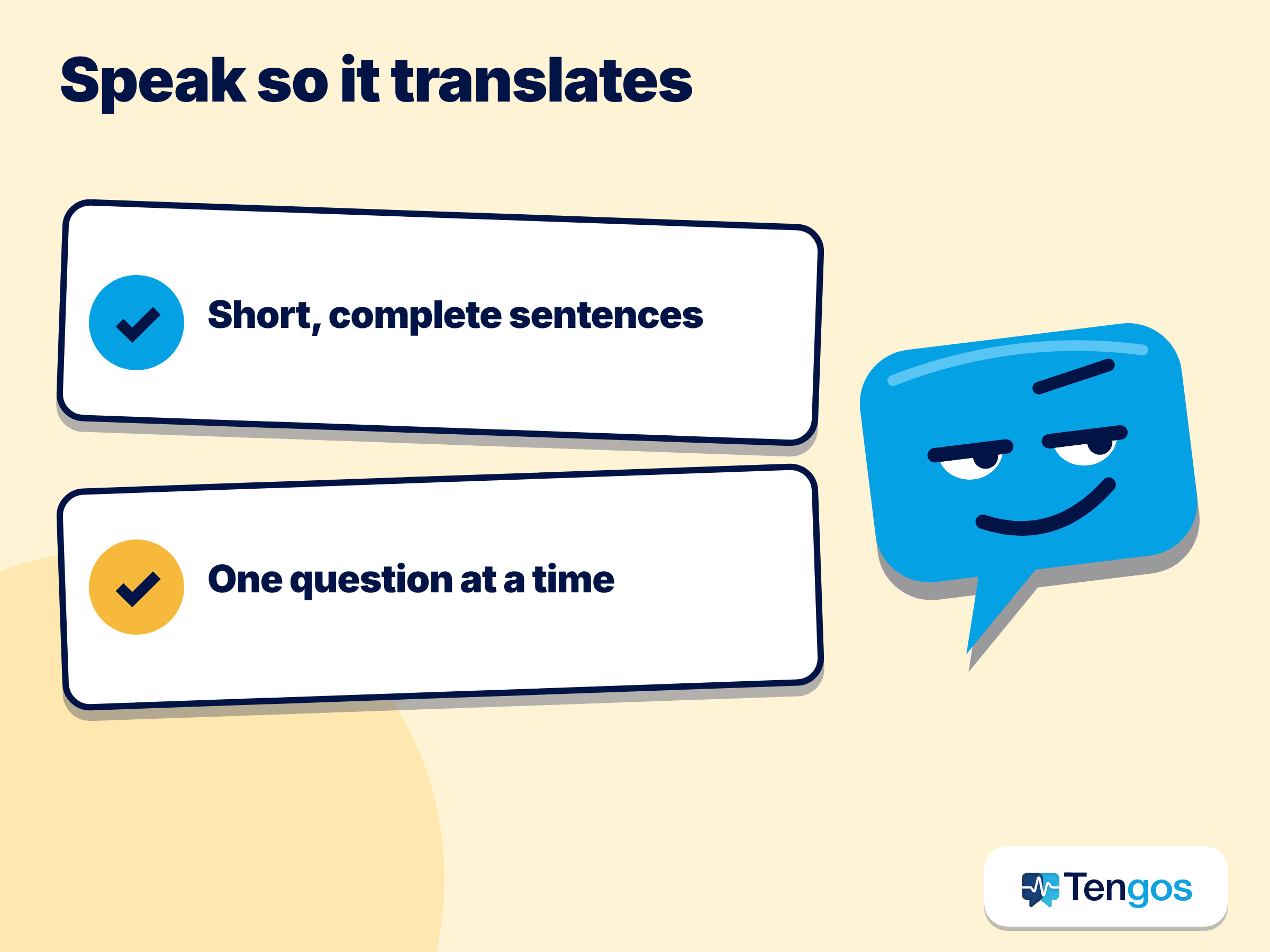
- Speak in short, complete sentences, pause at natural breaks and ask one question at a time. Guidance written for working with human interpreters says the same thing, and it helps machines too.
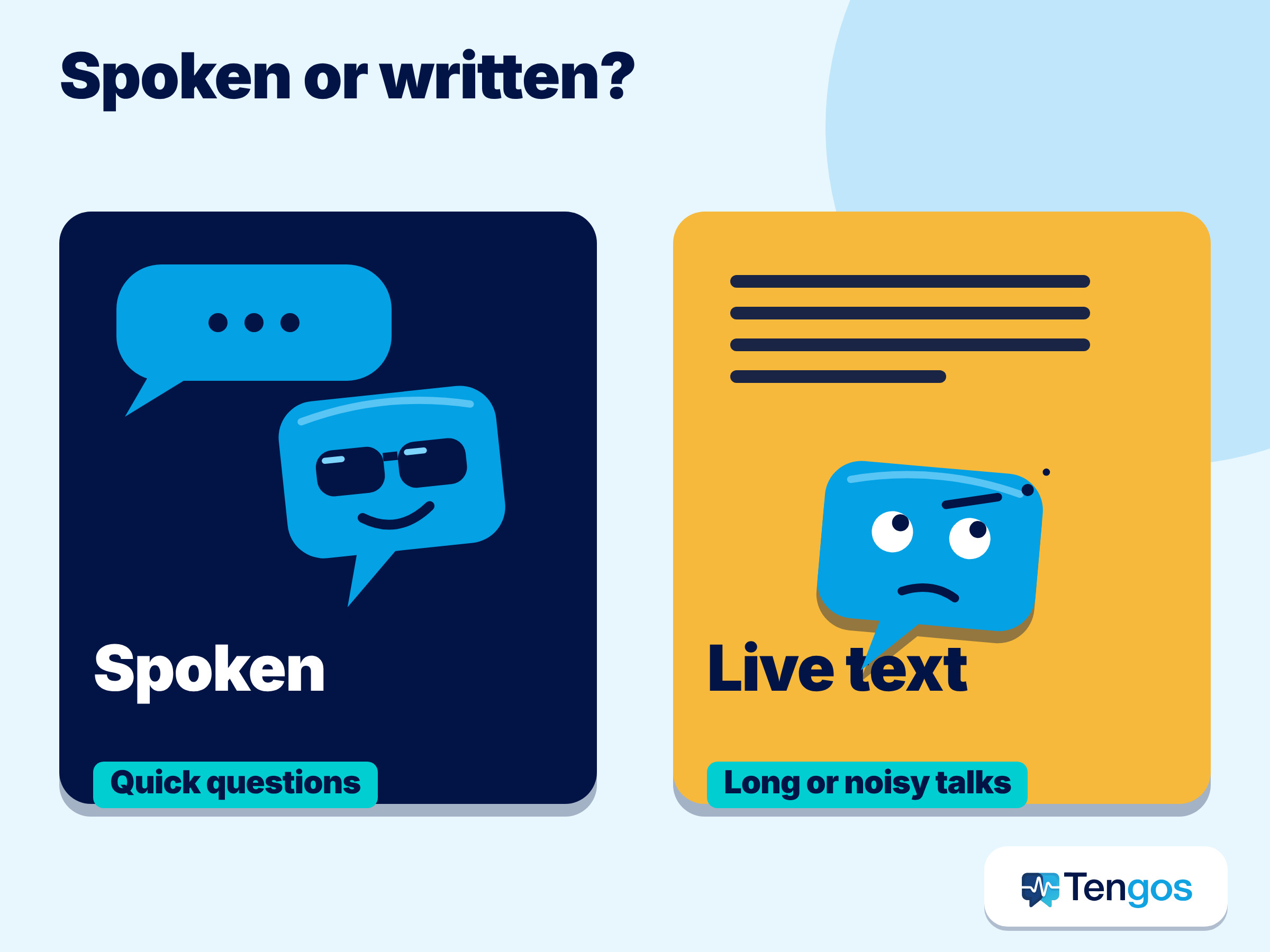
- A spoken translation suits quick exchanges. A written live transcript suits long, noisy or important conversations because you can read, scroll back and check a name or a number.
- Test first. Tengos has a Free plan with 120 minutes per month, so you can try the transcript approach at no cost before you rely on it.
What does it mean to translate a conversation in real time?
Real-time translation means the other person’s speech is turned into your language while they are still talking, or within a few seconds of each sentence. Three things happen in quick succession: the app listens and converts speech to text, a translation engine converts that text into your language, and the result is shown on screen or spoken aloud.
That last step is where tools differ. Some speak the translation, so both people hear a voice from the phone. Others show text only. A live transcript with translation, which is how Tengos works, puts the original sentence and your language together on one screen, so the conversation leaves a record you can read back. The Tengos pricing page lists real-time speech transcription and real-time text translation across 60 languages on every plan.
Which method fits your situation?
There is no single best method, only a best fit for the conversation in front of you. This table summarises the options as a general guide; individual apps and models vary.
| Method | How it works | Best for | Watch out for |
|---|---|---|---|
| Phone conversation mode | The phone listens to two languages and speaks or shows each translation | Short exchanges: directions, shops, reception desks | Turn-taking is needed, and noise can confuse the microphone |
| Live transcript with translation | Text appears for each sentence, original and translated | Long talks, meetings, lectures, anything you may want to review | You read rather than listen, so keep the screen visible |
| Headphones or earbuds | Translation is played into your ear | Hands-free listening, tours, one-way listening | Often needs a phone and an app; battery and delay vary |
| Human interpreter | A person interprets in both directions | Legal, medical and other high-stakes situations | Cost and scheduling |
For anything legal, medical or financial, treat machine translation as a helper and not a replacement. Apple’s own support page warns that translation output may be inaccurate and that you should check important information.
How do you translate a face-to-face conversation step by step?
Here is a method that works with almost any app. The steps take about two minutes and cut most of the common problems.
The first thing to settle is who will hold the phone and where it will sit. One phone placed between you works well, because both voices reach the microphone at a similar volume.
- Pick the two languages before you start. Choose the exact variants if the app asks, for example Portuguese (Portugal) or Portuguese (Brazil), because vocabulary differs.
- Choose the output you need. Spoken translation is quick, but text lets you read along. If the room is loud, choose text.
- Download offline languages if signal may drop. Offline coverage is smaller than online coverage, so check your pair is included before you travel.
- Place the phone between you. Keep the microphone unobstructed and about an arm’s length from each speaker. Avoid a table with background noise next to a speaker or a coffee machine.
- Say a short opening line first. For example, tell the other person you are using a translation app, and ask them to speak in short sentences. This is polite, and it sets the pace.
- Take turns. Finish a thought, pause, and let the translation appear before the other person answers.
- Check the key points. Repeat names, numbers, dates and addresses back, and confirm them on screen.
- Save the transcript if you need it. For a meeting, a viewing or a consultation, export or keep the text so you can review what was agreed.
How should you speak so the translation stays accurate?
Speaking style changes accuracy more than most people expect. Notebookcheck’s review of a popular translation earbud found that translations were very accurate for basic conversation, took up to about 3 seconds, and that talking speed was one of the biggest factors in accuracy. That is a finding about one product, but the lesson applies to any tool: if the speaker rushes, the translation suffers.
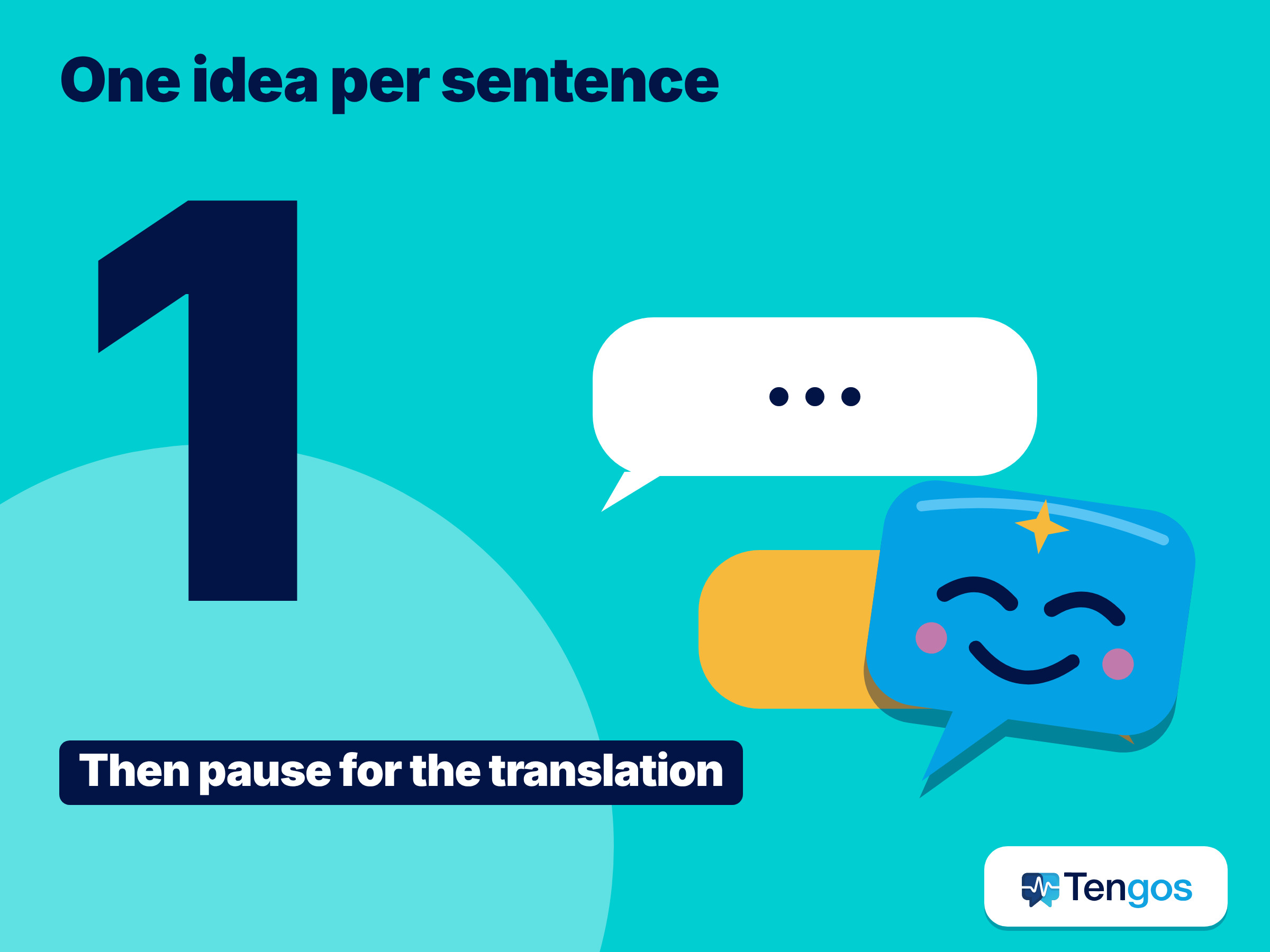
Advice written for working with human interpreters is a good template. The Minnesota Department of Health’s guide to working with interpreters recommends short, simple sentences, pausing at natural breaks, asking one question at a time, avoiding jargon and idioms, and confirming key instructions. The same habits make machine translation more reliable.
A short checklist you can use right away:
- Speak at a normal pace, not slowly and not shouted. Clear is better than slow.
- Use complete sentences of one idea each, then pause.
- Ask one question at a time and wait for the answer.
- Avoid idioms such as “it’s a piece of cake”, jokes that rely on wordplay, and long chains of clauses.
- Spell out names, product codes and numbers, or write them down.
What do Google, Apple and Microsoft already offer?
Before you install anything, check what your phone can already do. The three big platforms each have a conversation feature.
Google’s help page for live translate describes a conversation mode in which translations play aloud and speakers take turns, a text-only mode, and a face-to-face mode that shows each speaker a transcription and translation on their half of the screen. The page lists 73 languages. Offline live translation is currently limited to certain Pixel phones and 11 language pairs, each with English. In March 2026 Google also said that live translate with headphones was coming to iOS and expanding to more countries.
Apple’s iPhone guide says the Translate app can translate text, voice and conversations, and that you can download languages for offline translation. For AirPods, Apple’s Live Translation page says the feature needs supported AirPods, an iPhone 15 Pro or later, iOS 26 or later and Apple Intelligence turned on. The other person does not need AirPods, because you can show them a transcript or play the translation through the iPhone speaker.
Microsoft offers a multi-device conversation feature in its Translator apps for Android, iOS and Amazon Fire, and in the browser at translate.it, described on its live conversation page. It is designed for in-person conversations where each participant joins a session from their own device.
These built-in tools are a sensible first test. A dedicated app such as Tengos is the better fit when you want a running written record, translation across 60+ languages, group translation for several viewers, export, or an AI summary afterwards.
How do you handle noise, names and numbers?
Noise and proper nouns cause most real-world errors. A few habits help.
In a loud room, move closer to the speaker rather than turning up the volume, and prefer a text display over spoken output so you are not trying to hear a voice over the noise. If you have a headset microphone, use it, since it sits closer to the mouth than the phone.
Names, numbers and technical terms are the weakest point of any translation tool. Write down phone numbers, prices and dates, and read them back. If you will use the same specialised words repeatedly, such as a product name or a medical term, say them clearly and check how they appear in the transcript. Tengos plans include custom terms on higher tiers, which is useful for recurring vocabulary; see the pricing page for details.
An illustrative example, not a real case: imagine you are viewing an apartment with an owner who speaks another language. You put the phone on a table between you, choose text output, and ask the owner to give one fact per sentence: rent, deposit, move-in date. After each answer you read the translated number aloud to confirm it. The whole exchange takes a few minutes longer than a rushed one, and you leave with a transcript of the terms.
Is it polite and safe to use a translation app in a conversation?
Yes, if you are open about it. Tell the other person what you are using and why, and ask for their agreement, especially if the app records or transcribes the conversation. In a business or medical setting, check whether policies allow recording. Avoid sharing sensitive personal information through any tool unless you have checked how it handles data. The Tengos website states that data is encrypted in transit and at rest; for anything confidential, review the privacy terms of any tool before you use it.
How can you practise before an important conversation?
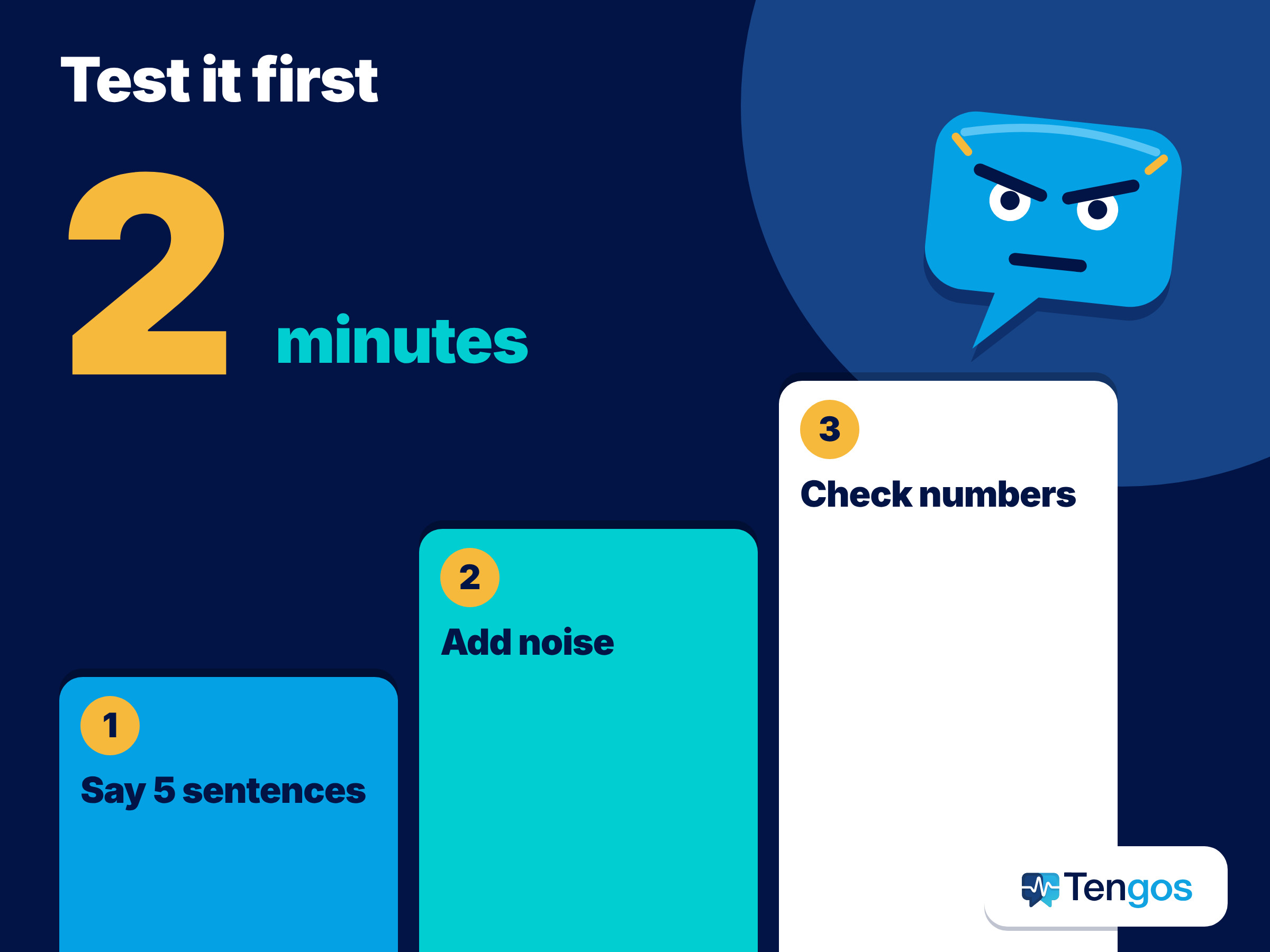
A 2-minute test costs nothing and shows you the delay, the accuracy and the noise limits before it matters.
- Choose a realistic sentence set. Write five sentences you expect to say, including a name, a number and a date.
- Read them aloud at a normal pace. Watch how the translation appears and note any errors.
- Repeat in noise. Play a cafe video in the background and try again.
- Switch roles. Ask a friend who speaks the other language to answer, and see whether turn-taking feels natural.
- Decide the mode. If spoken translation stumbles, switch to text. If text is too slow to read, shorten your sentences.
When does a live transcript beat a spoken translation?
A spoken translation is the fastest way to ask a simple question. A live transcript is better when the conversation is long, noisy, or important, because you can read at your own pace, scroll back to a missed detail and keep a record. It also helps when you are not fully fluent: reading the other language alongside your own makes it easier to learn and to check.
Tengos is built for that case. It is an iOS and Android app that provides real-time transcription and translation across 60+ languages, with transcript export and AI meeting summaries, and a Free plan of 120 minutes per month. It does not replace a human interpreter for high-stakes situations, and it does not claim to. It is a low-cost way to follow and review live conversations.
Frequently Asked Questions
Can I translate a conversation in real time for free?
Yes. Google Translate and Apple’s Translate app are free to use, and Tengos has a Free plan of 120 minutes per month. Check each service for current limits.
Do both people need the same app?
Not always. In conversation mode on a single phone, both people use the same device. Microsoft’s multi-device conversation lets each person join from their own phone.
Does real-time translation work offline?
Sometimes. Google lists offline live translate for certain Pixel phones and 11 language pairs, and Apple lets you download languages for offline translation. Offline coverage is smaller and accuracy can be lower, so test your language pair first.
How accurate is real-time conversation translation?
It is usually good for everyday topics and weaker for specialised vocabulary, names and numbers. Speaking in short sentences and confirming key details improves results. Do not rely on it alone for medical, legal or financial decisions.
What is the best way to translate a long conversation?
Use a live transcript with translation so you can read, scroll back and keep a record. Tengos offers this in 60+ languages, with a Free plan to try it.
Final thoughts
To translate a conversation in real time, set up the languages, place the phone between you, speak in short sentences, take turns and check the numbers. Use a spoken translation for quick questions and a live transcript when the conversation is long or matters. Run the 2-minute test first, and if you want to try the live transcript approach, you can explore Tengos at tengos.ai.
Related reading: Live meeting translation