Live Captions With Translation: How to Watch Foreign-Language Livestreams and Webinars
Published on Nov 18, 2026

Table of Contents
You can watch a foreign-language livestream or webinar with live captions with translation, but no single tool covers every event. Platform captions are the easiest start when the host has turned them on, a translation app works when the host has not, and a recording or transcript is your safety net for anything important. This guide shows how to choose before the event starts, so you are not hunting through menus while the speaker moves on.
Key Takeaways
- Check what the host enabled first. Live captions with translation usually have to be switched on by the organizer or an admin. If the event page does not mention captions or interpretation, assume you need your own tool.
- Platforms differ a lot. At the time of writing, YouTube’s automatic captions for live streams are English only, while Zoom and Microsoft Teams offer translated captions only on certain plans or add-ons.
- A translation app is the fallback. An app that listens and shows a translated live transcript works even when the host did nothing, as long as the sound is clear.
- Test before the event. Two minutes with the stream’s audio tells you more than any feature list.
- Machine captions miss names and numbers. Verify anything that matters, and do not rely on them alone for medical, legal or financial decisions.
- Tengos supports 60+ languages on iOS, Android and as a Chrome extension, with a Free plan of 120 minutes per month to try it.
What counts as live captions with translation?
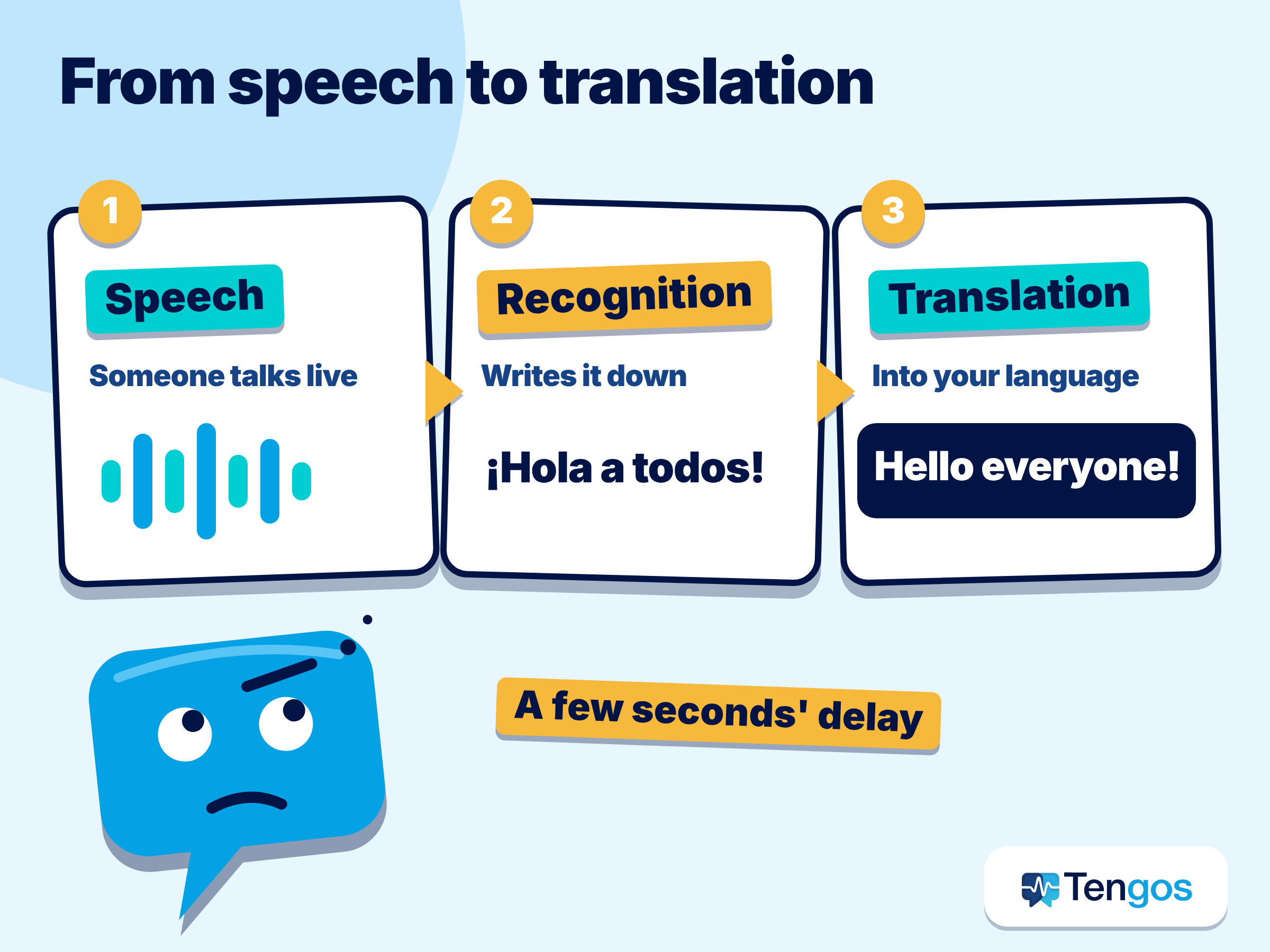
It means the speech of a live event is turned into text and shown in a second language within a few seconds. Two steps are involved: speech recognition writes down what was said, and machine translation converts that text into your language. Either step can go wrong, and the delay is part of the experience.
Do not confuse it with three neighbors. Same-language captions write the speech down but do not translate. Dubbing or voice translation replaces the audio with a spoken translation. A human interpreter translates in real time, often on a separate audio channel, and remains the best choice for high-stakes content.
For calls, see our guide to live meeting translation on Zoom, Meet and Teams. This article is about the viewer’s side of a livestream or webinar.
A live event is harder than a video because you cannot pause or rewind. A price or product name is gone in a second, and live audio is messy: unscripted Q&A, speakers who switch languages mid-sentence, and weak microphones all trip up automatic captioning.
Accessibility standards treat live captions as a real requirement for broadcasts. The W3C’s explanation of WCAG Success Criterion 1.2.4 says captions must be provided for live audio content in synchronized media at conformance level AA, and that the criterion is aimed at broadcasts, not two-way calls in web apps. So a hosted webinar may well be captioned in the original language, but translation into your language is a separate extra.
What do YouTube, Zoom, Teams and Meet offer?
Each platform offers something different, and details depend on the plan and the host’s settings. Treat this table as a general guide and check the linked help page before an important event, because plans change.
| Platform | What it offers for live events | Main limits to know |
|---|---|---|
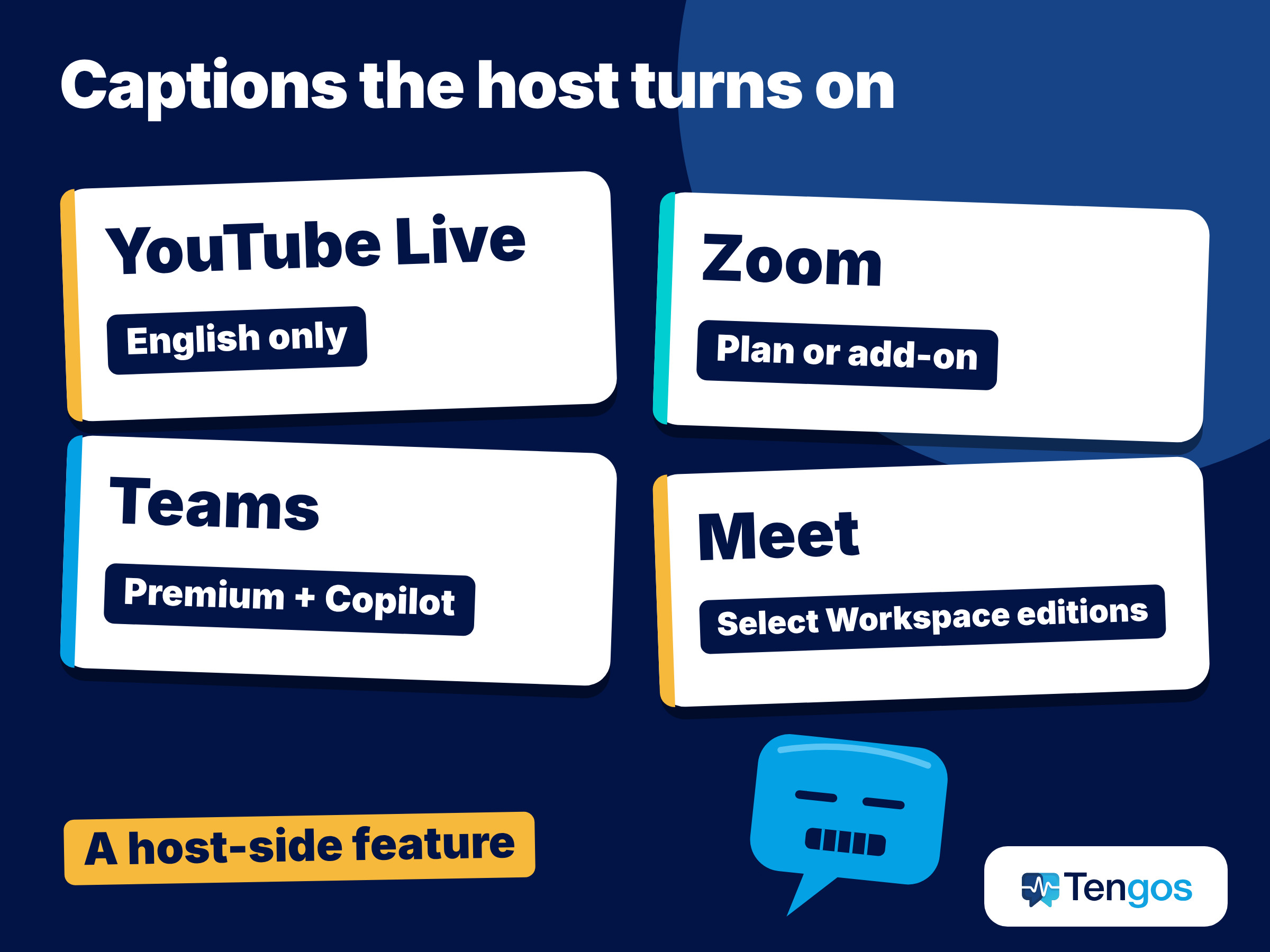
| YouTube Live | Automatic captions can be turned on for a live stream | English only for live streams; normal-latency streams only; not kept after the stream ends |
| Zoom | Translated captions in meetings and in Zoom Events livestreams | Needs an eligible plan or the Translated Captions add-on; an admin or host enables it |
| Microsoft Teams | Live translated captions in meetings; preselected languages for town halls and live events | Translated captions are part of Teams Premium and Microsoft Copilot |
| Google Meet | Translated captions in meetings | Only on certain Workspace editions; you see captions only for the part you attended |
How does YouTube handle live captions?
YouTube’s help page on automatic captions says automatic captions for live streams are available in English only, can be turned on only for individual live streams, and do not remain on the video after the stream ends. Only normal-latency streams support them, so mobile and low-latency streams do not. The page also warns that captions may misrepresent speech because of accents, dialects or background noise.
In practice, if you watch a Spanish-language stream and want English subtitles, YouTube’s live captions will not help. For recorded videos the picture is better, and we cover it in our guide on translating a YouTube video without subtitles.
What about Zoom, Teams and Meet?
Zoom’s article on enabling and configuring translated captions says the feature needs a qualifying Workspace plan or the Zoom Translated Captions add-on, and an account owner or admin must enable it. Participants can then switch caption languages themselves, from the languages the host offers (about 35 are listed). For Zoom Events livestreams, a separate page on translated captions in Zoom Events says the host needs a Translated Captions license, and attendees pick a language with the Translation button.
Microsoft’s page on live captions in Teams meetings says live translated captions are part of Teams Premium and Microsoft Copilot. If the organizer has a qualifying license, all participants can use them. For town halls and live events, organizers preselect the caption languages (six, or ten with Premium).
Google’s page on translated captions in Google Meet lists the eligible Workspace editions and notes that some languages are in beta, so quality can vary.
The pattern is the same everywhere: translated captions are a host-side feature. As an attendee, you usually cannot switch them on yourself.
How can you get live captions with translation when the host has not turned them on?
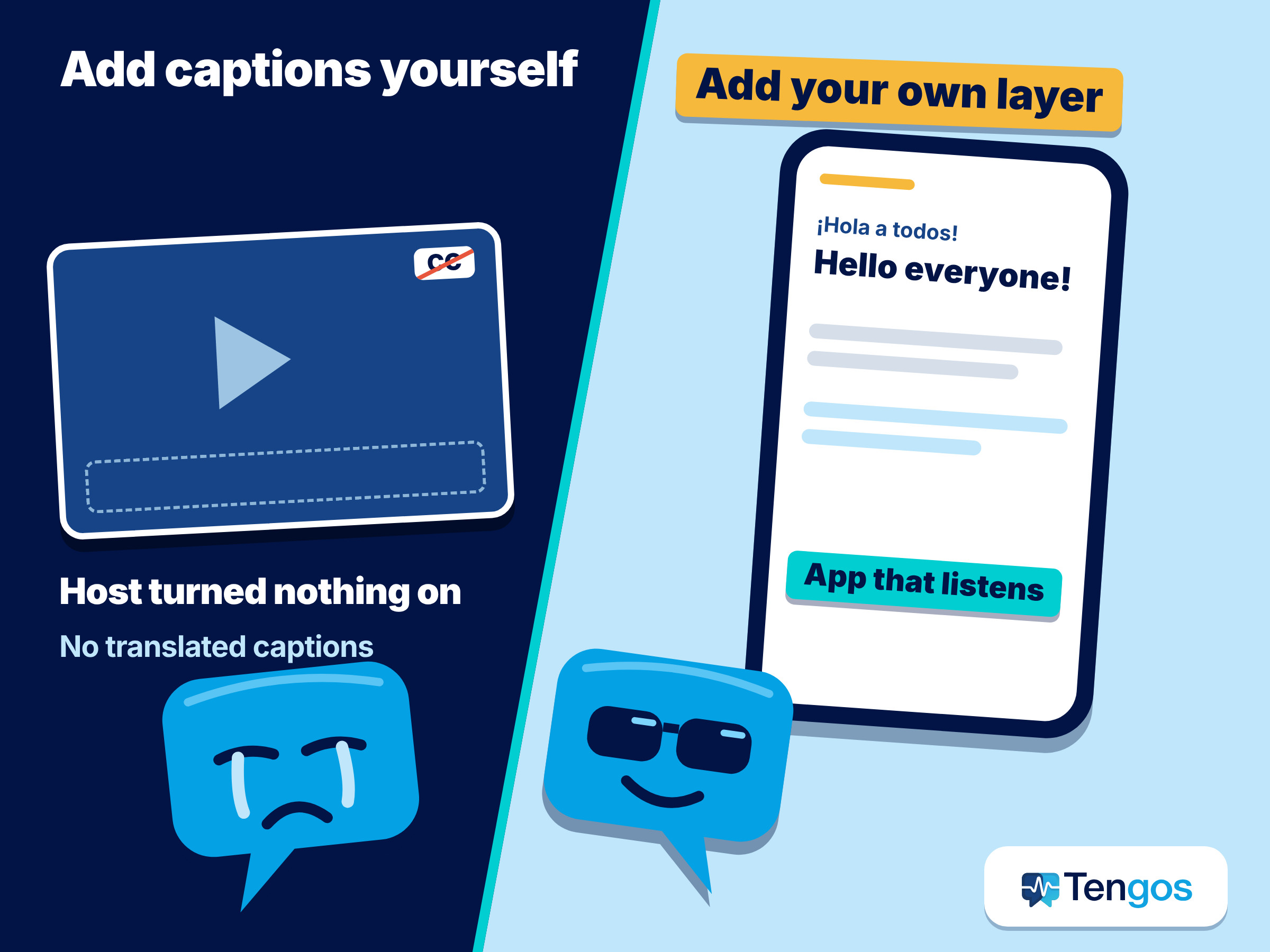
Add captions on your own side. There are two common ways.
Your browser’s captions. Chrome’s help page on Live Caption and Live Translate says Live Caption is processed locally on your device, while Live Translate sends the captions to Google for translation. You can translate into more than 100 languages, but the source languages are limited to a list that includes Japanese, Korean, Spanish, French, German, Portuguese and Chinese. It works only in the browser, and the floating captions are hard to save.
A translation app that listens. An app or browser extension can listen to the stream and show a translated live transcript, whatever the platform. Tengos is one such app. Based on its pricing page, it provides real-time speech transcription and real-time text translation in 60+ languages, on iOS, Android and as a Chrome extension. The tradeoff is that you read a transcript beside the video, not captions inside the player, and you need a clear audio source.
Which live captions with translation method should you choose?
The best method depends on how much the event matters and where you watch. Individual events and apps vary, so use this as a starting point.
| Your situation | Best first choice | Backup |
|---|---|---|
| The host announced translated captions | The platform’s own captions | A translation app if your language is not offered |
| Public stream with no captions in your language | A translation app or your browser’s Live Translate | A recording and transcript afterwards |
| A work webinar you must act on | Platform captions plus a transcript you can export | Ask the organizer for the recording and slides |
| A long conference with several sessions | A translation app with a saved transcript per session | Browser Live Caption for quick lookups |
| Medical, legal or financial content | A qualified human interpreter | Machine output only as a helper |
When unsure, use two methods together: platform captions for the instant read, a transcript so you can scroll back and check a missed word.
How do you test live captions with translation in two minutes?
Run this before the event, using the pre-show, a trailer or an older video from the same speaker.
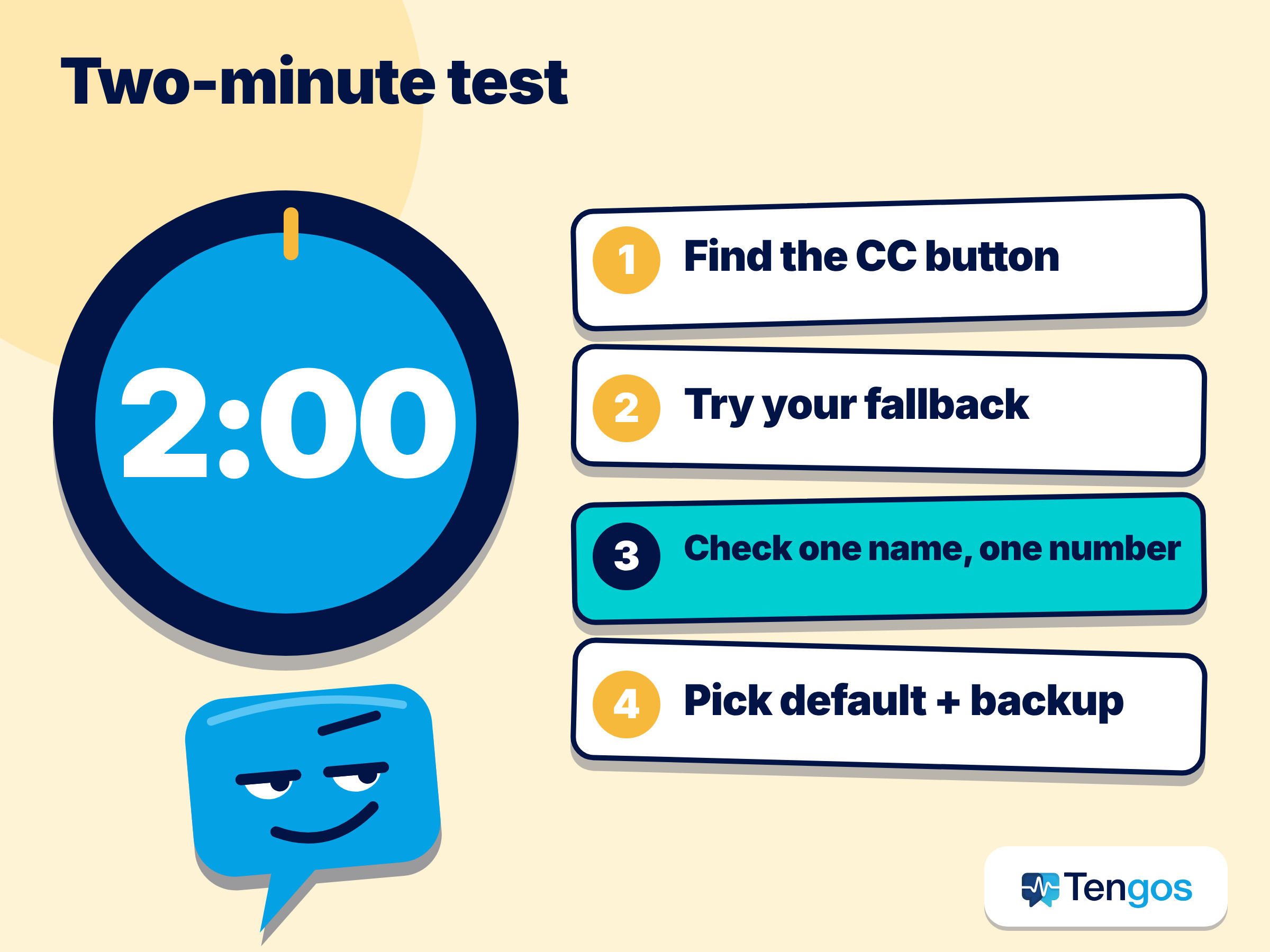
- Look for the host’s captions. Find the CC button and see which languages appear.
- Try your fallback. Run Live Caption or your translation app for a minute and read the first few sentences.
- Check one name and one number against what you hear.
- Choose a default and a backup.
Set the spoken language correctly, since a wrong source language is a common cause of gibberish.
Here is an illustrative example, not a real case. Suppose you want to follow a two-hour product webinar in Japanese, and the organizer has not announced translated captions. You test Chrome’s Live Translate on the pre-show and it works for the introduction, but you want a record you can search later, so you also open a translation app with Japanese as the spoken language and English as the reading language. When a price comes up, you confirm it on the slide, and afterwards you ask for the recording to double-check anything that sounded off.
How do you keep notes from a long event?
Live captions fade as they scroll, so they are a poor record on their own. A transcript you can export, or an AI summary of the main points, turns a two-hour session into short notes. Our guide on summarizing a webinar with translation shows how.
Check the practical limits before the day. On the Tengos pricing page, the Free plan allows up to 15 minutes per recording and 120 minutes per month, while Lite allows up to 1 hour per recording and Starter up to 3 hours. For a long webinar that difference matters, so match the plan to the session length and check the pricing page for current limits.
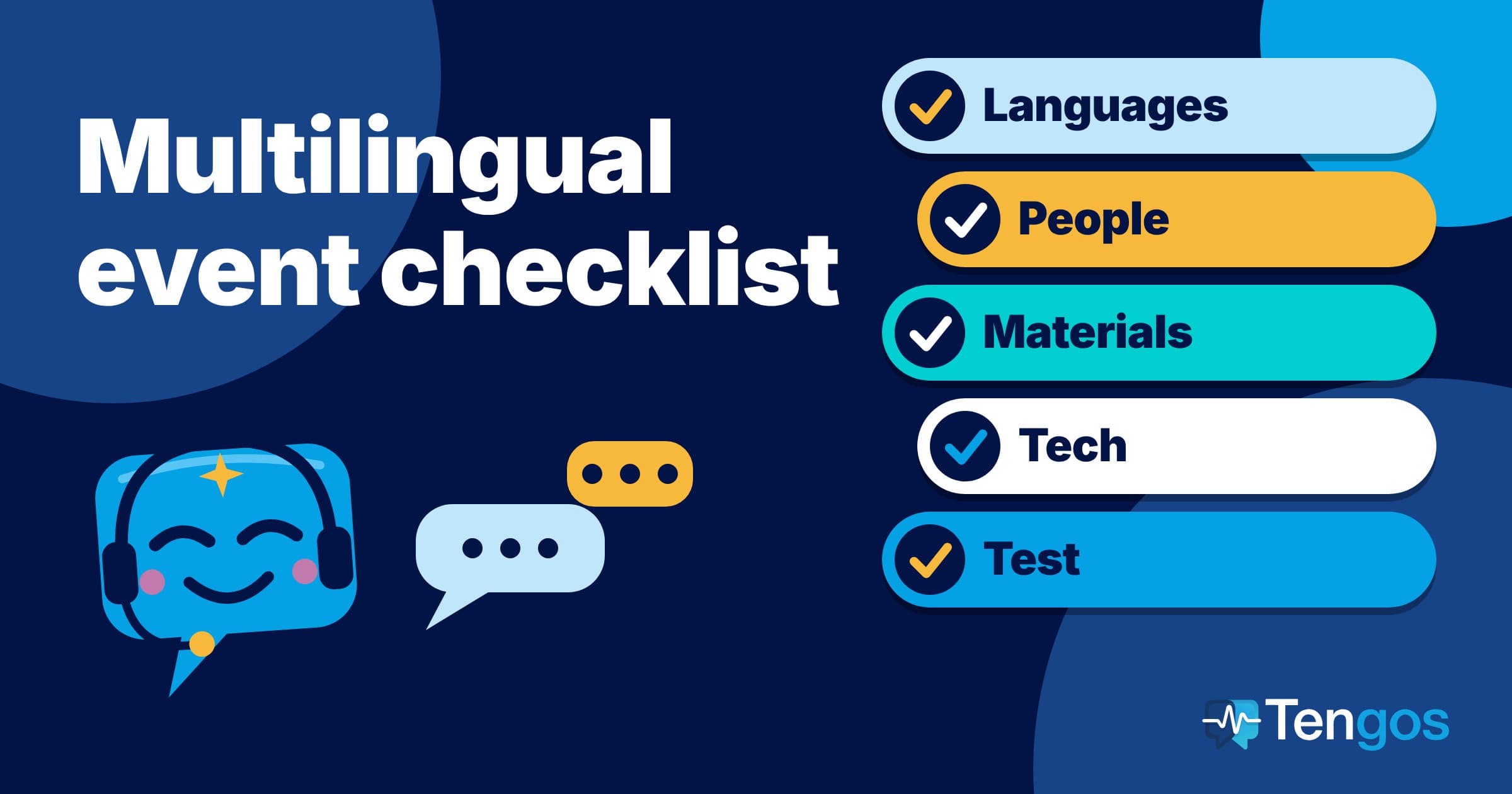
Learning the language too? See language learning with YouTube and podcasts. Organizing an event yourself? The multilingual event checklist for organizers covers what to prepare.
What should you check before trusting live translated captions?
Automatic captions are good for the gist and less reliable for details. The weak points are names, numbers, technical terms, strong accents and overlapping speakers. Check numbers against a slide or the recording, and question any sentence that makes no sense, since the speech recognition probably heard something else.
Privacy matters too. If you stream audio from a private or internal event through any tool, read its terms first and tell the organizer if you will record or transcribe. The Tengos website states that data is encrypted in transit and at rest, but check the privacy terms of any service before using it for confidential material.
Frequently Asked Questions
Can I get live captions with translation on any livestream for free?
Partly. Chrome’s Live Caption and Live Translate are browser settings, and Tengos has a Free plan with 120 minutes per month, so you can try a live transcript at no cost. Platform features such as translated captions on Zoom or Teams depend on the host’s plan.
Why is there no translation option on a YouTube livestream?
Automatic captions for live streams on YouTube are English only and work only on normal-latency streams. If the stream is in another language or uses low latency, there may be nothing to translate. Use your browser’s Live Translate or a translation app instead.
Can I turn on translated captions myself in a Zoom or Teams event?
Usually not. On Zoom, an admin or host enables them and the account needs an eligible plan or add-on. On Teams, translated captions are part of Teams Premium and Microsoft Copilot, and organizers preselect languages for town halls. Attendees then choose among the options the host provides.
How accurate are live captions with translation?
Usually fine for the meaning of clear speech and weaker for names, numbers and specialist terms. Accuracy drops with noise, accents and people talking over each other. Check anything important against the recording, and use a qualified interpreter for high-stakes content.
Is it okay to transcribe a livestream I am watching?
For personal viewing and study, using a caption or translation tool on a stream you can legally watch is normal. To share a transcript publicly, check the creator’s rights and the platform’s terms. For a private event, tell the organizer and follow your organization’s policies.
Final thoughts
To watch a foreign-language livestream with live captions with translation, check what the host enabled, then add your own layer if the event did not provide one. Use platform captions when they exist, a browser or app-based live transcript when they do not, and a recording for the details that matter. A two-minute test and a quick check of names and numbers will do more for you than any feature list.
To read a live transcript in your own language, you can try Tengos free, and get the app for iPhone and iPad on the App Store or for Android on Google Play.
Related reading: How to Translate a YouTube Video Without Subtitles in Your Language: 4 Ways That Work